
![ChartDB]() ChartDB
Container
Database diagram editor that draws your real schema from one query's output, for PostgreSQL, MySQL, MariaDB, SQL Server, SQLite, Oracle, ClickHouse and more, then lets you edit it and export it as SQL, even for a different database. Source: https://github.com/chartdb/chartdb
Image details
Source details
Configuration
TypeContainerlinuxghcr.io/chartdb/chartdb:latest8087:80/tcpDISABLE_ANALYTICS=trueHIDE_CHARTDB_CLOUD=trueunless-stoppedTemplate by NotAFlightRisk
Report issueNotes
http://<your-host>:8087, pick your database, run the query it gives you against it, and paste the result back in to get the diagram (a SQL or DBML schema dump works too). There's no login and nothing to back up on the server, since diagrams are saved in your browser's own storage, so another browser or a cleared cache starts empty. Backup --> Export Diagram keeps a copy, and Restore Diagram brings it back. Actions --> Export SQL works offline, but its AI tab needs an OpenAI key, which ChartDB hands to every visitor, so it's left off here. The page loads its font from Google Fonts and a GitHub star button from ghbtns.com. Docs: docs.chartdb.ioStandalone Install
Select an install method, to see config/commands for deploying ChartDB
Install on Portainer
Import all app templates into your Portainer instance, for easy 1-click deploys
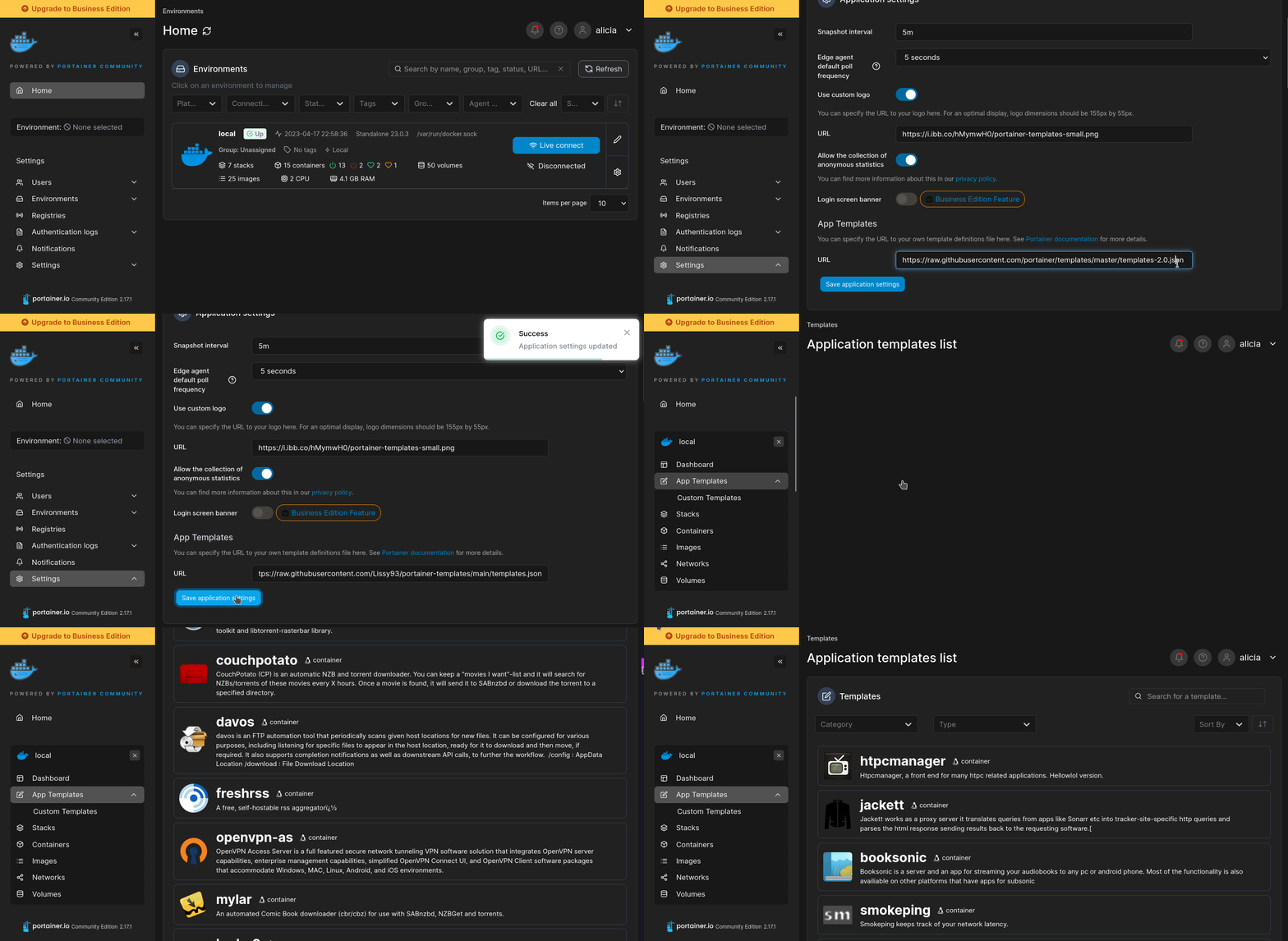
- Ensure both Docker and Portainer are installed, and up-to-date
- Log into your Portainer web UI
- Under Settings → App Templates, paste the below URL
- Head to Home → App Templates, and the list of apps will show up
- Select ChartDB, fill in any config options, and hit Deploy
Template Import URL
https://raw.githubusercontent.com/Lissy93/portainer-templates/main/templates.json
Show Me
More install options in our documentation, or see chartdb/chartdb for app-specific guidance.
<img src="https://github.com/chartdb/chartdb/blob/main/src/assets/logo-light.png" width="400" height="70" alt="ChartDB">
<img src="https://github.com/chartdb/chartdb/blob/main/src/assets/logo-dark.png" width="400" height="70" alt="ChartDB">
<img src="https://github.com/chartdb/chartdb/blob/main/src/assets/logo-light.png" width="400" height="70" alt="ChartDB"><img src="https://github.com/chartdb/chartdb/blob/main/src/assets/logo-dark.png" width="400" height="70" alt="ChartDB">
Open-source database diagrams editor
No installations • No Database password required.
Community • Website • Examples • Demo
<img src="https://img.shields.io/github/license/chartdb/chartdb?color=blue" alt="ChartDB is released under the AGPL license." />
<img src="https://img.shields.io/badge/PRs-Welcome-brightgreen" alt="PRs welcome!" />
<img src="https://img.shields.io/discord/1277047413705670678?color=5865F2&label=Discord&logo=discord&logoColor=white" alt="Discord community channel" />
<img src="https://img.shields.io/twitter/follow/jonathanfishner?style=social"/>
<img src="https://img.shields.io/github/license/chartdb/chartdb?color=blue" alt="ChartDB is released under the AGPL license." /><img src="https://img.shields.io/badge/PRs-Welcome-brightgreen" alt="PRs welcome!" /><img src="https://img.shields.io/discord/1277047413705670678?color=5865F2&label=Discord&logo=discord&logoColor=white" alt="Discord community channel" /><img src="https://img.shields.io/twitter/follow/jonathanfishner?style=social"/>
🎉 ChartDB
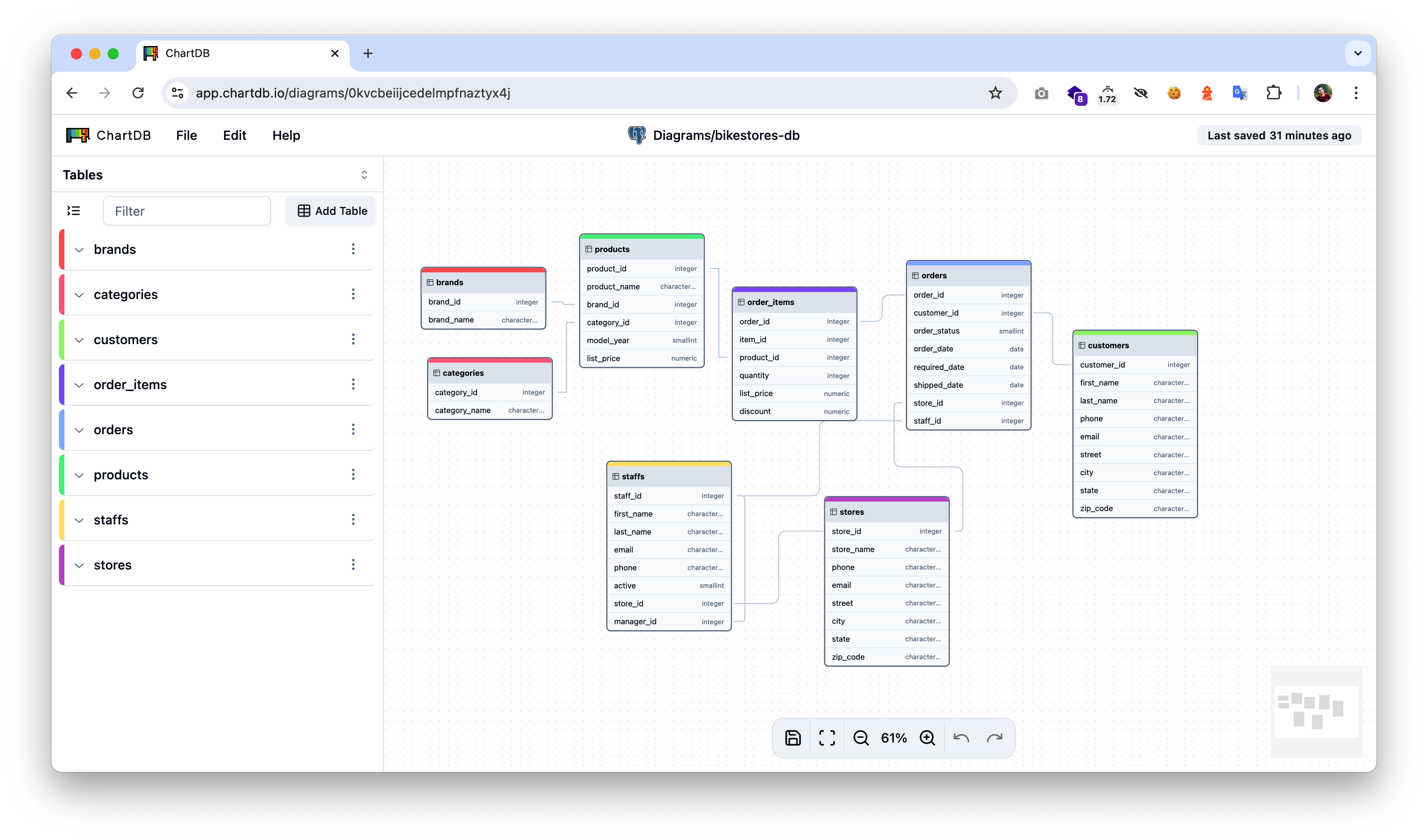
ChartDB is a powerful, web-based database diagramming editor. Instantly visualize your database schema with a single "Smart Query." Customize diagrams, export SQL scripts, and access all features—no account required. Experience seamless database design here.What it does:
- Instant Schema Import
- AI-Powered Export for Easy Migration
- Interactive Editing
Status
ChartDB is currently in Public Beta. Star and watch this repository to get notified of updates.Supported Databases
- ✅ PostgreSQL (
 +
 +
 )
- ✅ MySQL
- ✅ SQL Server
- ✅ MariaDB
- ✅ SQLite (
 +
 Cloudflare D1)
- ✅ CockroachDB
- ✅ ClickHouse
Getting Started
Use the cloud version or deploy locally:How To Use
npm install
npm run dev
Build
npm install
npm run build
Or like this if you want to have AI capabilities:
npm install
VITE_OPENAI_API_KEY=<YOUR_OPEN_AI_KEY> npm run build
Run the Docker Container
docker run -e OPENAI_API_KEY=<YOUR_OPEN_AI_KEY> -p 8080:80 ghcr.io/chartdb/chartdb:latestBuild and Run locally
docker build -t chartdb .
docker run -e OPENAI_API_KEY=<YOUR_OPEN_AI_KEY> -p 8080:80 chartdb
Using Custom Inference Server
# Build
docker build \
  --build-arg VITE_OPENAI_API_ENDPOINT=<YOUR_ENDPOINT> \
  --build-arg VITE_LLM_MODEL_NAME=<YOUR_MODEL_NAME> \
  -t chartdb .

# Run
docker run \
  -e OPENAI_API_ENDPOINT=<YOUR_ENDPOINT> \
  -e LLM_MODEL_NAME=<YOUR_MODEL_NAME> \
  -p 8080:80 chartdb
Privacy Note: ChartDB includes privacy-focused analytics via Fathom Analytics. You can disable this by adding-e DISABLE_ANALYTICS=trueto the run command or--build-arg VITE_DISABLE_ANALYTICS=truewhen building.
Note: You must configure either Option 1 (OpenAI API key) OR Option 2 (Custom endpoint and model name) for AI capabilities to work. Do not mix the two options.
Open your browser and navigate to
http://localhost:8080.Example configuration for a local vLLM server:
VITE_OPENAI_API_ENDPOINT=http://localhost:8000/v1
VITE_LLM_MODEL_NAME=Qwen/Qwen2.5-32B-Instruct-AWQ
Try it on our website
- Go to ChartDB.io
- Click "Go to app"
- Choose the database that you are using.
- Take the magic query and run it in your database.
- Copy and paste the resulting JSON set into ChartDB.
- Enjoy Viewing & Editing!
💚 Community & Support
- Discord (For live discussion with the community and the ChartDB team)
- GitHub Issues (For any bugs and errors you encounter using ChartDB)
- Twitter (Get news fast)
Contributing
We welcome community contributions, big or small, and are here to guide you along the way. Message us in the ChartDB Community Discord.For more information on how to contribute, please see our Contributing Guide.
This project is released with a Contributor Code of Conduct. By participating in this project, you agree to follow its terms.
Thank you for helping us make ChartDB better for everyone :heart:.
License
ChartDB is licensed under the GNU Affero General Public License v3.0Serve ChartDB on your own domain behind Caddy, Nginx or Traefik. Fill in your domain and copy the result. It's a starting point, some apps need their own base URL or extra headers set too.
Proxying chartdb.example.com to http://chartdb:80
Add this to your Caddyfile
chartdb.example.com {
	reverse_proxy http://chartdb:80
}Check the logs first
Nine times out of ten the logs tell you exactly what went wrong.
- In Portainer, go to Containers, click the container, then Logs. Or run
docker logs chartdb - Exit codes help too:
137means killed, usually out of memory.126or127means the command inside the image is broken.
Port already in use
If deployment fails with "Bind for 0.0.0.0:8087 failed: port is already allocated", something else on your server is using that port.
- Find what's using it:
sudo ss -tlnp | grep :8087 - Stop the other service, or pick a different host port. In
8087:80only the left number is yours to change, the right one belongs to the app.
Running but the page won't load
The container is up but nothing appears in your browser.
- Use your server's real IP:
http://your-server-ip:8087. The 0.0.0.0 link Portainer shows isn't a real address. - Give it a minute after first deploy, chartdb can take a while to initialise.
- Make sure your firewall allows the port, e.g.
sudo ufw allow 8087
Image won't pull
Test the pull directly on the host: docker pull ghcr.io/chartdb/chartdb:latest
- "manifest unknown" means the tag no longer exists. This template uses
latest, so try pinning a specific version instead. - "toomanyrequests" is the Docker Hub rate limit. Log in with
docker loginto raise it. - "no space left on device" means a full disk. Reclaim space with
docker system prune
"exec format error"
This means the image was built for a different CPU architecture than your server.
- This image supports:
amd64, arm64 - Check yours with
uname -m: x86_64 is amd64, aarch64 is arm64. Raspberry Pi and other ARM boards are the usual culprits.
Container keeps restarting
The unless-stopped restart policy relaunches the app after every crash, so the real error can scroll past.
- Check the logs right after a restart, the last few lines before it died are the useful ones.
- Get the exit code with
docker inspect chartdb --format '{{.State.ExitCode}}' - Still stuck? Redeploy once with the restart policy set to
noso the failure stays visible.
Data disappears when the container is recreated
This template doesn't define any volumes, so everything chartdb saves lives inside the container and is lost on update or recreate.
- Add a volume mapping for chartdb's data folder before storing anything you care about.
Raise an issue
Found something which isn't working as it should? Here's how to report it.
- Bug within the app: Open an issue on chartdb/chartdb
- Template not working: Open an issue on NotAFlightRisk/portainer-templates-extras
- This website not working: Open an issue on lissy93/portainer-templates
A single container
ChartDB runs as one container, the simplest kind of app here. Just the one image to pull and nothing else wired up alongside it.
The app image
An image is the app packed up ready to go, everything ChartDB needs bundled into one download. This template pulls ghcr.io/chartdb/chartdb:latest, which Docker fetches once (about 80 MB) and then starts your own copy from.
Where the image comes from
Docker pulls its images from registries, public libraries of ready-built apps. ChartDB's comes from the GitHub Container Registry, published by chartdb.
Version tags
The bit after the colon in the image name is the version tag. Here it's latest, which always points at the newest build, so a redeploy can bump you to a newer release without you asking. Pin a specific tag if you would rather stay on one version.
Which machines it runs on
Every image is built for particular CPU types. This one ships for amd64, arm64, so it runs on both regular x86 servers and ARM boards like a Raspberry Pi.
Ports
A port is the door the app answers on. A mapping like 8087:80 means it's reachable on port 8087 of your server, where the left number is yours to change and the right one belongs to the app. Once it's running, open http://your-server-ip:8087 in a browser. It opens:
8087:80, likely the web interface
No stored data
This template doesn't mount any storage, so whatever ChartDB writes stays inside the container and is wiped if it's recreated or updated. That's fine for something stateless, but add a volume before trusting it with anything you want to keep.
Environment variables
Environment variables are the settings you hand over when you deploy, things like a password or a timezone. ChartDB takes 2 of them, all with defaults you can leave alone or tweak:
DISABLE_ANALYTICS, defaults totrue. Keeps ChartDB's Fathom analytics script out of the page, so leave it as it is.HIDE_CHARTDB_CLOUD, defaults totrue. Stops the editor asking you to star the project on GitHub.
Restart policy
The restart policy here is unless-stopped, so Docker restarts ChartDB after a crash or reboot, but leaves it off when you stop it on purpose. You can change this on the deploy screen. The choices are no (never restart), on-failure (only after a crash), unless-stopped (restart unless you stop it), and always (bring it back no matter what).
Networking
Nothing custom is set, so ChartDB sits on Docker's default bridge network: its own private space that reaches the outside world only through the ports it publishes.
Container name
Once it's deployed, Portainer names the container chartdb. That's what you'll spot in the containers list and use in commands like docker logs chartdb.
Platform
The platform is linux, the kind of system the container is built to run on. Docker and Portainer handle this on a normal Linux server.
Open source license
ChartDB is open source, released under the AGPL-3.0 license. In plain terms the code is out in the open, so you're free to run it and change it to fit what you need.
Portainer app templates
Zooming out, this whole page comes from a Portainer app template: a short recipe telling Portainer how to set ChartDB up. Add the template list to Portainer once, then deploying ChartDB is a click rather than a wall of config.