
![Livebook]() Livebook
Stack
Interactive Elixir notebooks saved as plain Markdown, with charts, tables, maps and forms built in, plus a way to turn a notebook into a small web app. Pulls in any Hex package from inside a notebook. Source: https://github.com/livebook-dev/livebook
Image details
Source details
Configuration
TypeComposelinuxghcr.io/livebook-dev/livebook:latest${LIVEBOOK_PORT:-8590}:80808591:8591/data : livebook-notebooks/home/livebook/.local/share/livebook : livebook-configLIVEBOOK_PASSWORD=${LIVEBOOK_PASSWORD:?Set a password of 12 or more characters}LIVEBOOK_SECRET_KEY_BASE=${LIVEBOOK_SECRET_KEY_BASE:?Set a secret key}LIVEBOOK_IFRAME_PORT=8591LIVEBOOK_PORT=8590unless-stoppedTemplate by NotAFlightRisk·Source
Report issueNotes
http://<your-host>:8590 (or whichever port you picked) and log in. Charts and widgets load from port 8591 on the same host, so keep that one open too - it's fixed, and changing it breaks every output. Notebooks save to the livebook-notebooks volume (/data in the file picker), and settings live in livebook-config. Packages you pull in with Mix.install download again after an update, which is normal. Whoever logs in can run any code on the server, so keep it off the open internet unless it's behind HTTPS. Docs: hexdocs.pm/livebookStandalone Install
Select an install method, to see config/commands for deploying Livebook
Install on Portainer
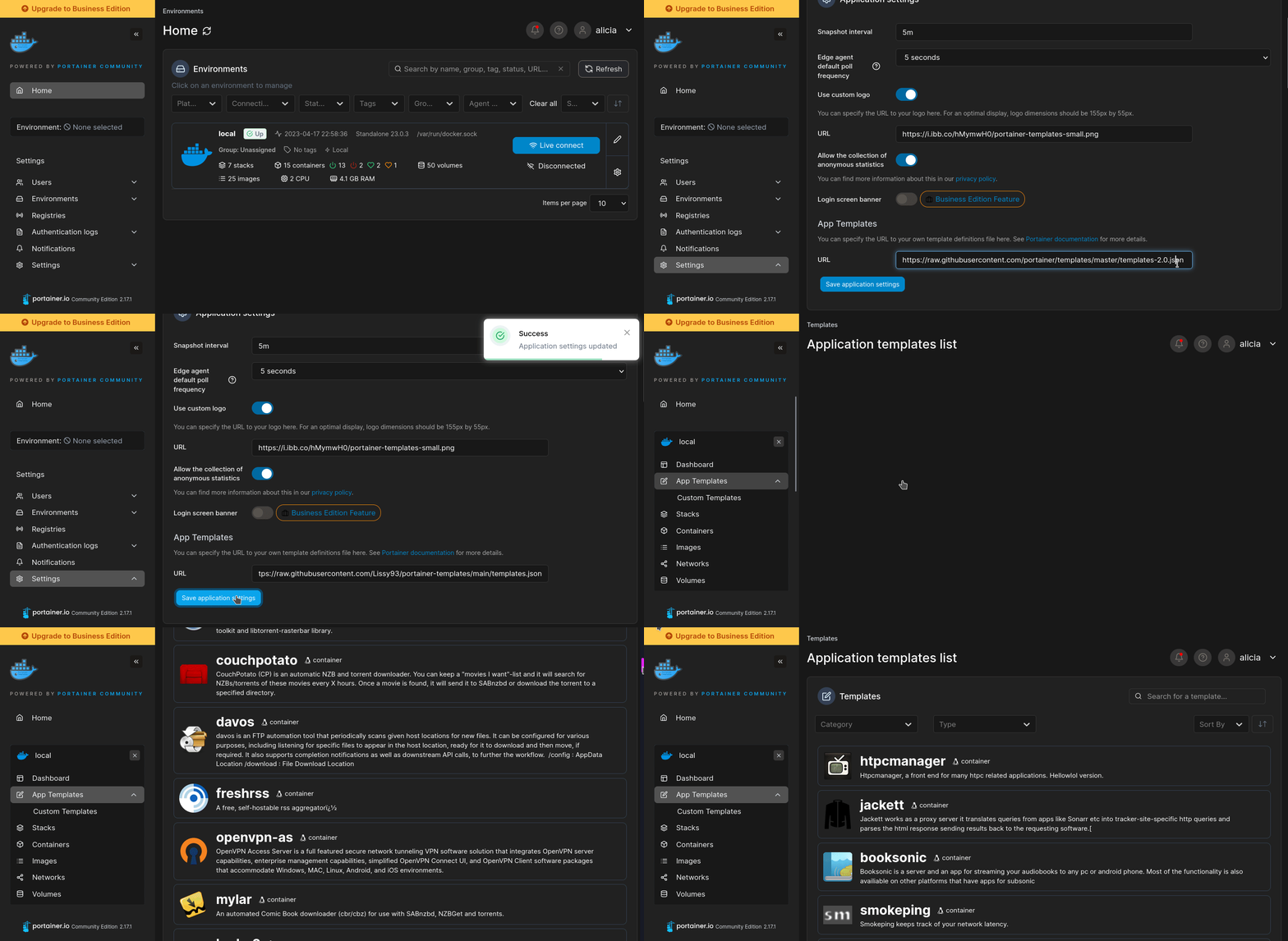
Import all app templates into your Portainer instance, for easy 1-click deploys
- Ensure both Docker and Portainer are installed, and up-to-date
- Log into your Portainer web UI
- Under Settings → App Templates, paste the below URL
- Head to Home → App Templates, and the list of apps will show up
- Select Livebook, fill in any config options, and hit Deploy
Template Import URL
https://raw.githubusercontent.com/Lissy93/portainer-templates/main/templates.json
Show Me
Original stackfile
The compose file this template deploys, straight from its repo:
services:
  livebook:
    image: ghcr.io/livebook-dev/livebook:latest
    restart: unless-stopped
    ports:
      - "${LIVEBOOK_PORT:-8590}:8080"
      - "8591:8591"
    environment:
      LIVEBOOK_PASSWORD: ${LIVEBOOK_PASSWORD:?Set a password of 12 or more characters}
      LIVEBOOK_SECRET_KEY_BASE: ${LIVEBOOK_SECRET_KEY_BASE:?Set a secret key}
      LIVEBOOK_IFRAME_PORT: "8591"
    volumes:
      - livebook-notebooks:/data
      - livebook-config:/home/livebook/.local/share/livebook

volumes:
  livebook-notebooks:
  livebook-config:
Or deploy it directly from the source:
git clone https://github.com/NotAFlightRisk/portainer-templates-extras
cd portainer-templates-extras
docker compose -f apps/livebook/compose.yml up -d
More install options in our documentation, or see livebook-dev/livebook for app-specific guidance.
Livebook


Livebook is a web application for writing interactive and collaborative code notebooks. It features:
Code notebooks with Markdown support and Code cells where Elixir code is evaluated on demand.
Rich code editor through CodeMirror: with support for autocompletion, inline documentation, code formatting, etc.
Interactive results via Kino: display Vega-Lite charts, tables, maps, and more.
Automation: use Smart cells to perform high-level tasks and write notebooks faster than ever. Query databases, plot charts, build maps, and more directly from Livebook's UI.
Reproducible: Livebook ensures your code runs in a predictable order, all the way down to package management. It also tracks your notebook state, annotating which parts are stale.
Collaboration: multiple users can work on the same notebook at once, no additional setup required.
Decentralized: Livebook is open-source and you can run it anywhere. The "Run in Livebook" badge makes it easy to import any Livebook into your own Livebook.
Versionable: notebooks are stored in the
.livemd format, which is a subset of Markdown with support for diagrams via Mermaid and for mathematical formulas via KaTex. .livemd files can be shared and play well with version control.Custom runtimes: when executing Elixir code, you can either start a fresh Elixir instance, connect to an existing node, or run it inside an existing Elixir project, with access to all of its modules and dependencies. This means Livebook can be a great tool to introspect and document existing projects too.
Getting started
Head out to the Install section of Livebook's website to get started. Once Livebook is up and running on your machine, visit the "Learn" section with introductory guides and documentation on several Livebook features. Here is a sneak peak of the "Welcome to Livebook" guide:
There are more resources for those who are ready to dig deeper:
Our official documentation with in-depth guides
Our Integrations page covering the languages, data sources, and libraries that Livebook works with out-of-the-box
Our blog with news, posts, and screencasts
Installation
We provide several methods for running Livebook, pick the one that best fits your use case.Desktop app
Download the installer for Mac and Windows from our homepageLatest stable builds:
[macOS (arm64)](https://github.com/livebook-dev/livebook/releases/latest/download/Livebook-darwin-aarch64.dmg),
[macOS (x64)](https://github.com/livebook-dev/livebook/releases/latest/download/Livebook-darwin-x64.dmg),
[Windows](https://github.com/livebook-dev/livebook/releases/latest/download/Livebook-windows-x64.exe),
[Linux (arm64)](https://github.com/livebook-dev/livebook/releases/latest/download/Livebook-linux-aarch64.AppImage),
[Linux (x64)](https://github.com/livebook-dev/livebook/releases/latest/download/Livebook-linux-amd64.AppImage)[macOS (arm64)](https://github.com/livebook-dev/livebook/releases/download/nightly/Livebook-darwin-aarch64.dmg),
[macOS (x64)](https://github.com/livebook-dev/livebook/releases/download/nightly/Livebook-darwin-x64.dmg),
[Windows](https://github.com/livebook-dev/livebook/releases/download/nightly/Livebook-windows-x64.exe),
[Linux (arm64)](https://github.com/livebook-dev/livebook/releases/download/nightly/Livebook-linux-aarch64.AppImage),
[Linux (x64)](https://github.com/livebook-dev/livebook/releases/download/nightly/Livebook-linux-amd64.AppImage)[GitHub releases](https://github.com/livebook-dev/livebook/releases).Docker
Running Livebook using Docker is another great option to run Livebook in case you don't have Elixir installed.# Running with the default configuration
docker run -p 8080:8080 -p 8081:8081 --pull always ghcr.io/livebook-dev/livebook
# In order to access and save notebooks directly to your machine
# you can mount a local directory into the container.
# Make sure to specify the user with "-u $(id -u):$(id -g)"
# so that the created files have proper permissions
docker run -p 8080:8080 -p 8081:8081 --pull always -u $(id -u):$(id -g) -v $(pwd):/data ghcr.io/livebook-dev/livebook
# You can configure Livebook using environment variables,
# for all options see the dedicated "Environment variables" section below
docker run -p 8080:8080 -p 8081:8081 --pull always -e LIVEBOOK_PASSWORD="securesecret" ghcr.io/livebook-dev/livebook
# Or if you need to run on different ports:
docker run -p 8090:8090 -p 8091:8091 --pull always -e LIVEBOOK_PORT=8090 -e LIVEBOOK_IFRAME_PORT=8091 ghcr.io/livebook-dev/livebookTo deploy Livebook on your cloud platform, see our Docker Deployment guide.
For CUDA support, see images with the "cuda" tag.
To try out features from the main branch you can alternatively use the
ghcr.io/livebook-dev/livebook:nightly image.
See Livebook images.Embedded devices
If you want to run Livebook on embedded devices, such as Raspberry Pi, BeagleBone, etc., check out the Livebook firmware built with Nerves.Direct installation with Elixir
You can run Livebook on your own machine using just Elixir. You will need Elixir v1.18 or later. Livebook also requires the following Erlang applications:inets,
os_mon, runtime_tools, ssl and xmerl. Those applications come
with most Erlang distributions but certain package managers may split
them apart. For example, on Ubuntu, these Erlang applications can
be installed as follows:sudo apt install erlang-inets erlang-os-mon erlang-runtime-tools erlang-ssl erlang-xmerl erlang-dev erlang-parsetoolsNote: The
livebook package
is meant to be used as a CLI tool. Livebook is not officially
supported as a Mix/Hex dependency.Escript
Running Livebook using Escript makes for a very convenient option for local usage and provides easy configuration via CLI options.mix do local.rebar --force, local.hex --force
mix escript.install hex livebook
# Start the Livebook server
livebook server
# See all the configuration options
livebook server --helpAfter you install the escript, make sure you add the directory where Elixir keeps escripts to your $PATH). If you installed Elixir with
asdf, you'll need to run asdf reshim elixir
once the escript is built.To try out features from the main branch you can alternatively install the escript directly from GitHub like this:
mix escript.install github livebook-dev/livebookFrom source
You can run latest Livebook directly from source.git clone https://github.com/livebook-dev/livebook.git
cd livebook
mix setup.prod
# Run the Livebook server
MIX_ENV=prod mix phx.serverSecurity considerations
Livebook is built to document and execute code. Anyone with access to a Livebook instance will be able to access any file and execute any code in the machine Livebook is running.For this reason, Livebook only binds to the 127.0.0.1, allowing access to happen only within the current machine. When running Livebook in the production environment - the recommended environment - we also generate a token on initialization and we only allow access to the Livebook if said token is supplied as part of the URL.
Environment variables
The following environment variables can be used to configure Livebook on boot:
LIVEBOOK_ALLOW_URI_SCHEMES - sets additional allowed hyperlink schemes to theMarkdown content. Livebook sanitizes links in Markdown, allowing only a few
standard schemes by default (such as http and https). Set it to a comma-separated
list of schemes.LIVEBOOK_APP_SERVICE_NAME - sets the application name used by the cloudprovider to aid debugging.LIVEBOOK_APP_SERVICE_URL - sets the application url to manage thisLivebook instance within the cloud provider platform.LIVEBOOK_APPS_BANNER - sets the value to render at the top apps banner.LIVEBOOK_APPS_PATH - the directory with app notebooks. When set, the appsare deployed on Livebook startup with the persisted settings. Password-protected
notebooks will receive a random password, unless `LIVEBOOK_APPS_PATH_PASSWORD`
is set. When deploying using Livebook's Docker image, consider using
`LIVEBOOK_APPS_PATH_WARMUP`.LIVEBOOK_APPS_PATH_PASSWORD - the password to use for all protected appsdeployed from `LIVEBOOK_APPS_PATH`.LIVEBOOK_APPS_PATH_WARMUP - sets the warmup mode for apps deployed from`LIVEBOOK_APPS_PATH`. Must be either "auto" (apps are warmed up on Livebook
startup, right before app deployment) or "manual" (apps are warmed up when
building the Docker image; to do so add "RUN /app/bin/warmup_apps" to
your image). Defaults to "auto".LIVEBOOK_AWS_CREDENTIALS - enable Livebook to read AWS Credentials fromenvironment variables, AWS Credentials, EC2/ECS metadata when configuring
S3 buckets.LIVEBOOK_BASE_URL_PATH - sets the base url path the web application isserved on. Useful when deploying behind a reverse proxy.LIVEBOOK_PUBLIC_BASE_URL_PATH - sets the base url path the /public/* routesare served on. Note that this takes precedence over `LIVEBOOK_BASE_URL_PATH`,
if both are set. Setting this may be useful to create exceptions when deploying
behind a reverse proxy that requires authentication.LIVEBOOK_CACERTFILE - path to a local file containing CA certificates.Those certificates are used during for server authentication when Livebook
accesses files from external sources.LIVEBOOK_CLUSTER - configures clustering strategy when running multipleinstances of Livebook using either the Docker image or an Elixir release.
See the "Clustering" docs for more information:
https://hexdocs.pm/livebook/clustering.htmlLIVEBOOK_COOKIE - sets the cookie for running Livebook in a cluster.Defaults to a random string that is generated on boot.LIVEBOOK_DATA_PATH - the directory to store Livebook's internalconfiguration. Defaults to "livebook" under the default user data
directory.LIVEBOOK_DEFAULT_RUNTIME - sets the runtime type that is used by defaultwhen none is started explicitly for the given notebook. Must be either
"standalone" (Standalone), "attached:NODE:COOKIE" (Attached node)
or "embedded" (Embedded). Defaults to "standalone".LIVEBOOK_FORCE_SSL_HOST - sets a host to redirect to if the request is not over HTTPS.Note it does not apply when accessing Livebook via localhost. Defaults to nil.LIVEBOOK_HOME - sets the home path for the Livebook instance. This is thedefault path used on file selection screens and others. Defaults to the
user's operating system home.LIVEBOOK_IDENTITY_PROVIDER - controls whether Zero Trust Authenticationmust be used for this Livebook instance. This is useful when deploying
Livebook inside a cloud platform, such as Cloudflare and Google.
Supported values are:
* `basic_auth:<username>:<password>`
* `cloudflare:<your-team-name (domain)>`
* `google_iap:<your-audience (aud)>`
* `tailscale:<tailscale-cli-socket-path>`
* `custom:YourElixirModule`
See our authentication docs for more information: https://hexdocs.pm/livebook/authentication.htmlLIVEBOOK_IFRAME_PORT - sets the port that Livebook serves iframes at.This is relevant only when running Livebook without TLS. Defaults to 8081.LIVEBOOK_IFRAME_URL - sets the URL that Livebook loads iframes from.By default iframes are loaded from local `LIVEBOOK_IFRAME_PORT` when accessing
Livebook over http:// and from https://livebookusercontent.com when accessing over https://.LIVEBOOK_IMAGE_REGISTRY_URL - sets the container image registry used to fetch livebook images from.By default uses `ghcr.io/livebook-dev/livebook`.LIVEBOOK_IP - sets the ip address to start the web application on.Must be a valid IPv4 or IPv6 address.LIVEBOOK_LOG_LEVEL - sets the logger level, allowing for more verboselogging, either of: error, warning, notice, info, debug. Defaults to warning.LIVEBOOK_LOG_METADATA - a comma-separated list of metadata keys that shouldbe included in the log messages. Livebook-specific keys include:
- `users` (attached to evaluation and request logs)
- `session_mode` (attached to evaluation logs, either "default" or "app")
- `code` (attached to evaluation logs, the code being evaluated)
- `event` (attached to evaluation logs, currently always "code.evaluate")
By default includes only `request_id`.LIVEBOOK_LOG_FORMAT - sets the log output format, either "text" (default)for human-readable logs or "json" for structured JSON.LIVEBOOK_NODE - sets the node name for running Livebook in a cluster.Note that Livebook always runs using long names distribution, so the
node host name must use a fully qualified domain name (FQDN) or an IP
address.LIVEBOOK_PASSWORD - sets a password that must be used to access Livebook.Must be at least 12 characters. Defaults to token authentication.LIVEBOOK_PROXY_HEADERS - a comma-separated list of headers that are set byproxies. For example, `x-forwarded-for,x-forwarded-proto`. Configuring those
may be required when running Livebook behind reverse proxies.LIVEBOOK_PORT - sets the port Livebook runs on. If you want to run multipleinstances on the same domain with the same credentials but on different ports,
you also need to set `LIVEBOOK_SECRET_KEY_BASE`. Defaults to 8080. If set to 0,
a random port will be picked.LIVEBOOK_SECRET_KEY_BASE - sets a secret key that is used to sign and encryptthe session and other payloads used by Livebook. Must be at least 64 characters
long and it can be generated by commands such as: `openssl rand -base64 48`.
Defaults to a random secret on every boot.LIVEBOOK_SHUTDOWN_ENABLED - controls if a shutdown button should be shownin the homepage. Set it to "true" to enable it.LIVEBOOK_TOKEN_ENABLED - controls whether token authentication is enabled.Enabled by default unless `LIVEBOOK_PASSWORD` is set. Set it to "false" to
disable it.LIVEBOOK_UPDATE_INSTRUCTIONS_URL - sets the URL to direct the user to forupdating Livebook when a new version becomes available.LIVEBOOK_WITHIN_IFRAME - controls if the application is running inside aniframe. Set it to "true" to enable it. If you do enable it, then the application
must run with HTTPS.ERL_AFLAGS and ERL_ZFLAGS can also be set to configure
Livebook and the notebook runtimes. ELIXIR_ERL_OPTIONS are also available to customize
Livebook, but it is not forwarded to runtimes.If running Livebook via the command line, run
livebook server --help to see
all CLI-specific options.Livebook Desktop
When running Livebook Desktop, Livebook will invoke on boot a file named~/.livebookdesktop.sh on macOS or %USERPROFILE%\.livebookdesktop.bat
on Windows. This file can set environment variables used by Livebook,
such as:the
PATH environment variable)or to configure the Erlang VM, for instance, by setting
`ERL_AFLAGS="-proto_dist inet6_tcp"` if you need Livebook to run over IPv6Development
Livebook is primarily a Phoenix web application and can be setup as such:git clone https://github.com/livebook-dev/livebook.git
cd livebook
mix setup
# Run the Livebook server
mix phx.server
# Run tests
mix testDesktop app
./rel/app/tauri.sh devPlatinum sponsors
<source media="(prefers-color-scheme: dark)" srcset="https://fly.io/public/images/brand/logo-inverted.svg">
<source media="(prefers-color-scheme: light)" srcset="https://fly.io/public/images/brand/logo.svg">
<img height="130" src="https://fly.io/public/images/brand/logo.svg" alt="Fly.io">
Fly is a platform for running full stack apps and databases close to your users.
Sponsors


This project was a recipient of NGI0 Commons Fund,
a fund established by NLnet with financial support from the
European Commission's Next Generation Internet program.
Learn more.
<source media="(prefers-color-scheme: dark)" srcset="https://www.tigrisdata.com/docs/logo/dark.png">
<source media="(prefers-color-scheme: light)" srcset="https://www.tigrisdata.com/docs/logo/light.png">
<img height="50" src="https://www.tigrisdata.com/docs/logo/light.png" alt="Tigris">
Tigris is a globally distributed S3-compatible object storage
service that provides low latency anywhere in the world.
License
Copyright (C) 2021 DashbitLicensed under the Apache License, Version 2.0 (the "License"); you may not use this file except in compliance with the License. You may obtain a copy of the License at http://www.apache.org/licenses/LICENSE-2.0
Unless required by applicable law or agreed to in writing, software distributed under the License is distributed on an "AS IS" BASIS, WITHOUT WARRANTIES OR CONDITIONS OF ANY KIND, either express or implied. See the License for the specific language governing permissions and limitations under the License.
Serve Livebook on your own domain behind Caddy, Nginx or Traefik. Fill in your domain and copy the result. It's a starting point, some apps need their own base URL or extra headers set too.
Proxying livebook.example.com to http://livebook:8591
Add this to your Caddyfile
livebook.example.com {
	reverse_proxy http://livebook:8591
}Check the logs first
Nine times out of ten the logs tell you exactly what went wrong.
- In Portainer, go to Containers, click the container, then Logs. Or run
docker logs <container> - Exit codes help too:
137means killed, usually out of memory.126or127means the command inside the image is broken.
Port already in use
If deployment fails with "Bind for 0.0.0.0:8591 failed: port is already allocated", something else on your server is using that port.
- Find what's using it:
sudo ss -tlnp | grep :8591 - Stop the other service, or pick a different host port. In
8591:8591only the left number is yours to change, the right one belongs to the app.
Running but the page won't load
The container is up but nothing appears in your browser.
- Use your server's real IP:
http://your-server-ip:8591. The 0.0.0.0 link Portainer shows isn't a real address. - Give it a minute after first deploy, livebook can take a while to initialise.
- Make sure your firewall allows the port, e.g.
sudo ufw allow 8591
Image won't pull
Test the pull directly on the host: docker pull ghcr.io/livebook-dev/livebook:latest
- "manifest unknown" means the tag no longer exists. This template uses
latest, so try pinning a specific version instead. - "toomanyrequests" is the Docker Hub rate limit. Log in with
docker loginto raise it. - "no space left on device" means a full disk. Reclaim space with
docker system prune
"exec format error"
This means the image was built for a different CPU architecture than your server.
- This image supports:
amd64, arm64 - Check yours with
uname -m: x86_64 is amd64, aarch64 is arm64. Raspberry Pi and other ARM boards are the usual culprits.
Container keeps restarting
The unless-stopped restart policy relaunches the app after every crash, so the real error can scroll past.
- Check the logs right after a restart, the last few lines before it died are the useful ones.
- Get the exit code with
docker inspect <container> --format '{{.State.ExitCode}}' - Still stuck? Redeploy once with the restart policy set to
noso the failure stays visible.
Stack won't deploy
Compose stacks fail fast on small mistakes, and Portainer shows the reason just above the editor.
- YAML only accepts spaces for indentation, a single tab breaks the whole file.
Raise an issue
Found something which isn't working as it should? Here's how to report it.
- Bug within the app: Open an issue on livebook-dev/livebook
- Template not working: Open an issue on NotAFlightRisk/portainer-templates-extras
- This website not working: Open an issue on lissy93/portainer-templates
A Compose stack
Livebook is a Compose stack, a set of containers defined in one file and brought up together by Portainer, then started and stopped as a single app.
The app image
An image is the app packed up ready to go, everything Livebook needs bundled into one download. This template pulls ghcr.io/livebook-dev/livebook:latest, which Docker fetches once (about 270 MB) and then starts your own copy from.
Where the image comes from
Docker pulls its images from registries, public libraries of ready-built apps. Livebook's comes from the GitHub Container Registry, published by livebook-dev.
Version tags
The bit after the colon in the image name is the version tag. Here it's latest, which always points at the newest build, so a redeploy can bump you to a newer release without you asking. Pin a specific tag if you would rather stay on one version.
Which machines it runs on
Every image is built for particular CPU types. This one ships for amd64, arm64, so it runs on both regular x86 servers and ARM boards like a Raspberry Pi.
Ports
A port is the door the app answers on. A mapping like 8591:8591 means it's reachable on port 8591 of your server, where the left number is yours to change and the right one belongs to the app. It opens:
8591:8591
Volumes
A volume is where Livebook keeps its files so they survive an update or a restart. Without one, anything it saves would sit inside the container and vanish the moment it's recreated. This template mounts:
/datakept in thelivebook-notebooksvolume Docker manages/home/livebook/.local/share/livebookkept in thelivebook-configvolume Docker manages
Environment variables
Environment variables are the settings you hand over when you deploy, things like a password or a timezone. Livebook takes 4 of them, and 2 need a value before it'll start properly:
LIVEBOOK_PASSWORD, needs a value. What you'll log in with, 12 characters or more. Generate one with: openssl rand -hex 16LIVEBOOK_SECRET_KEY_BASE, needs a value. Signs your login, so it survives restarts and updates. Generate one with: openssl rand -base64 48LIVEBOOK_IFRAME_PORT, defaults to8591LIVEBOOK_PORT, defaults to8590. Host port for the web UI
Restart policy
The restart policy here is unless-stopped, so Docker restarts Livebook after a crash or reboot, but leaves it off when you stop it on purpose. You can change this on the deploy screen. The choices are no (never restart), on-failure (only after a crash), unless-stopped (restart unless you stop it), and always (bring it back no matter what).
Networking
Nothing custom is set, so Livebook sits on Docker's default bridge network: its own private space that reaches the outside world only through the ports it publishes.
Container name
Once it's deployed, Portainer names the container livebook. That's what you'll spot in the containers list and use in commands like docker logs livebook.
Platform
The platform is linux, the kind of system the container is built to run on. Docker and Portainer handle this on a normal Linux server.
Open source license
Livebook is open source, released under the Apache-2.0 license. In plain terms the code is out in the open, so you're free to run it and change it to fit what you need.
Portainer app templates
Zooming out, this whole page comes from a Portainer app template: a short recipe telling Portainer how to set Livebook up. Add the template list to Portainer once, then deploying Livebook is a click rather than a wall of config.