
![Tolgee]() Tolgee
Stack
Localisation platform for translating your app's strings, with in-context editing, machine translation, screenshots, comments, import and export in most formats, and a CLI and SDKs to sync with your code. Source: https://github.com/tolgee/tolgee-platform
Source details
Configuration
TypeComposelinuxTOLGEE_ADMIN_PASSWORD=''TOLGEE_DB_PASSWORD=''TOLGEE_PORT=8085unless-stoppedTemplate by NotAFlightRisk·Source
Report issueNotes
openssl rand -hex 16 and openssl rand -hex 32). Give it a minute or so on first start, then open it on port 8085 and log in as admin with your password - the login box asks for an email, but admin works. There's a demo project to poke at. Sign-ups are closed, so invite people from a project's Members page, which hands you a link to send them. To open sign-ups, add TOLGEE_SIGNUPS = true to the stack's environment variables and redeploy. Once a day it sends Tolgee a count of your projects, languages, translations and users; add TOLGEE_TELEMETRY = false the same way to stop that. Translations live in Postgres (the postgres-data volume), screenshots and avatars in tolgee-data. Some features, like tasks, glossaries, webhooks and SSO, need a paid licence, and machine translation wants your own key: add TOLGEE_DEEPL_KEY the same way for DeepL. Docs: docs.tolgee.ioServices
tolgee
Configuration
Imagetolgee/tolgee:latest${TOLGEE_PORT:-8085}:8080/data : tolgee-dataTOLGEE_AUTHENTICATION_ENABLED=trueTOLGEE_AUTHENTICATION_INITIALPASSWORD=${TOLGEE_ADMIN_PASSWORD:?Set an admin password}TOLGEE_AUTHENTICATION_REGISTRATIONSALLOWED=${TOLGEE_SIGNUPS:-false}TOLGEE_TELEMETRY_ENABLED=${TOLGEE_TELEMETRY:-true}TOLGEE_MACHINETRANSLATION_DEEPL_AUTHKEY=${TOLGEE_DEEPL_KEY:-}TOLGEE_POSTGRESAUTOSTART_ENABLED=falseSPRING_DATASOURCE_URL=jdbc:postgresql://postgres:5432/tolgeeSPRING_DATASOURCE_USERNAME=tolgeeSPRING_DATASOURCE_PASSWORD=${TOLGEE_DB_PASSWORD:?Set a database password}unless-stoppedImage details
postgres
Configuration
Imagepostgres:17-alpine/var/lib/postgresql/data : postgres-dataPOSTGRES_DB=tolgeePOSTGRES_USER=tolgeePOSTGRES_PASSWORD=${TOLGEE_DB_PASSWORD:?Set a database password}unless-stoppedImage details
Standalone Install
Select an install method, to see config/commands for deploying Tolgee
Install on Portainer
Import all app templates into your Portainer instance, for easy 1-click deploys
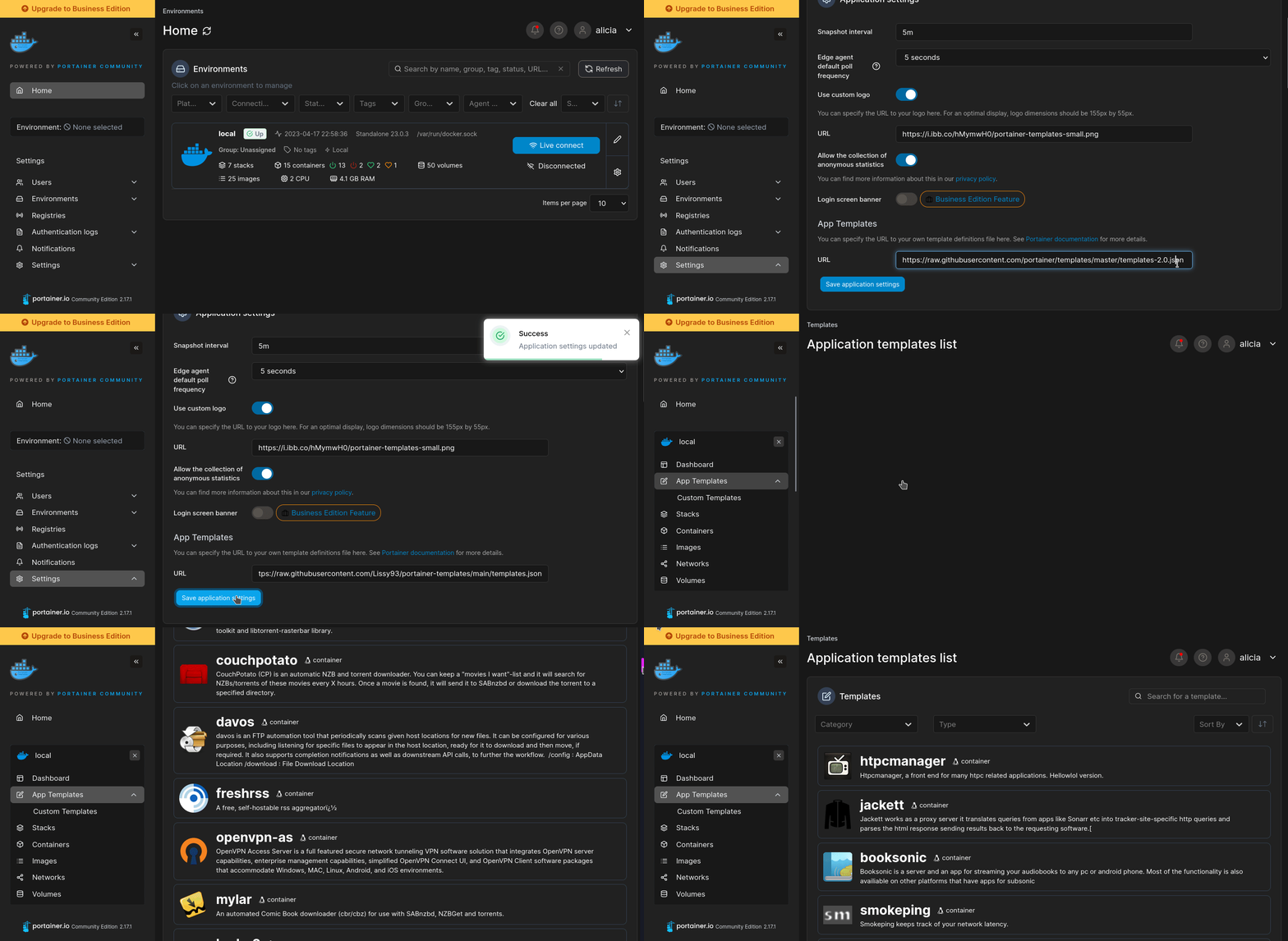
- Ensure both Docker and Portainer are installed, and up-to-date
- Log into your Portainer web UI
- Under Settings → App Templates, paste the below URL
- Head to Home → App Templates, and the list of apps will show up
- Select Tolgee, fill in any config options, and hit Deploy
Template Import URL
https://raw.githubusercontent.com/Lissy93/portainer-templates/main/templates.json
Show Me
Original stackfile
The compose file this template deploys, straight from its repo:
services:
  tolgee:
    image: tolgee/tolgee:latest
    restart: unless-stopped
    ports:
      - "${TOLGEE_PORT:-8085}:8080"
    environment:
      TOLGEE_AUTHENTICATION_ENABLED: "true"
      TOLGEE_AUTHENTICATION_INITIALPASSWORD: ${TOLGEE_ADMIN_PASSWORD:?Set an admin password}
      TOLGEE_AUTHENTICATION_REGISTRATIONSALLOWED: ${TOLGEE_SIGNUPS:-false}
      TOLGEE_TELEMETRY_ENABLED: ${TOLGEE_TELEMETRY:-true}
      TOLGEE_MACHINETRANSLATION_DEEPL_AUTHKEY: ${TOLGEE_DEEPL_KEY:-}
      TOLGEE_POSTGRESAUTOSTART_ENABLED: "false"
      SPRING_DATASOURCE_URL: jdbc:postgresql://postgres:5432/tolgee
      SPRING_DATASOURCE_USERNAME: tolgee
      SPRING_DATASOURCE_PASSWORD: ${TOLGEE_DB_PASSWORD:?Set a database password}
    volumes:
      - tolgee-data:/data
    depends_on:
      postgres:
        condition: service_healthy

  postgres:
    image: postgres:17-alpine
    restart: unless-stopped
    environment:
      POSTGRES_DB: tolgee
      POSTGRES_USER: tolgee
      POSTGRES_PASSWORD: ${TOLGEE_DB_PASSWORD:?Set a database password}
    volumes:
      - postgres-data:/var/lib/postgresql/data
    healthcheck:
      test: ["CMD-SHELL", "pg_isready -U tolgee -d tolgee"]
      interval: 10s
      timeout: 5s
      retries: 5

volumes:
  tolgee-data:
  postgres-data:
Or deploy it directly from the source:
git clone https://github.com/NotAFlightRisk/portainer-templates-extras
cd portainer-templates-extras
docker compose -f apps/tolgee/compose.yml up -d
More install options in our documentation, or see tolgee/tolgee-platform for app-specific guidance.
Container Documentation
tolgee Documentation
Open-source localization platform. Self-host the whole Tolgee server in one container.
postgres Documentation
The PostgreSQL object-relational database system provides reliability and data integrity.
Check the logs first
Nine times out of ten the logs tell you exactly what went wrong.
- In Portainer, go to Containers, click the container, then Logs. Or run
docker logs <container> - Exit codes help too:
137means killed, usually out of memory.126or127means the command inside the image is broken.
Image won't pull
Test the pull directly on the host: docker pull tolgee/tolgee:latest
- "manifest unknown" means the tag no longer exists. This template uses
latest, so try pinning a specific version instead. - "toomanyrequests" is the Docker Hub rate limit. Log in with
docker loginto raise it. - "no space left on device" means a full disk. Reclaim space with
docker system prune
"exec format error"
This means the image was built for a different CPU architecture than your server.
- Check yours with
uname -m: x86_64 is amd64, aarch64 is arm64. Raspberry Pi and other ARM boards are the usual culprits.
Container keeps restarting
The unless-stopped restart policy relaunches the app after every crash, so the real error can scroll past.
- Check the logs right after a restart, the last few lines before it died are the useful ones.
- Get the exit code with
docker inspect <container> --format '{{.State.ExitCode}}' - Still stuck? Redeploy once with the restart policy set to
noso the failure stays visible.
Stack won't deploy
Compose stacks fail fast on small mistakes, and Portainer shows the reason just above the editor.
- YAML only accepts spaces for indentation, a single tab breaks the whole file.
Raise an issue
Found something which isn't working as it should? Here's how to report it.
- Bug within the app: Open an issue on tolgee/tolgee-platform
- Template not working: Open an issue on NotAFlightRisk/portainer-templates-extras
- This website not working: Open an issue on lissy93/portainer-templates
A Compose stack
Tolgee is a Compose stack, a set of containers (2 of them) defined in one file and brought up together by Portainer, then started and stopped as a single app.
The services
This stack is built from 2 containers that run side by side. Here's each one, with the image it runs and anything it waits for first:
tolgeerunstolgee/tolgee:latest, starts after postgrespostgresrunspostgres:17-alpine
Volumes
A volume is where Tolgee keeps its files so they survive an update or a restart. Without one, anything it saves would sit inside the container and vanish the moment it's recreated. This template mounts:
/datakept in thetolgee-datavolume Docker manages/var/lib/postgresql/datakept in thepostgres-datavolume Docker manages
Environment variables
Environment variables are the settings you hand over when you deploy, things like a password or a timezone. Tolgee takes 12 of them, and 3 need a value before it'll start properly:
TOLGEE_AUTHENTICATION_ENABLED, defaults totrueTOLGEE_AUTHENTICATION_INITIALPASSWORD, needs a valueTOLGEE_AUTHENTICATION_REGISTRATIONSALLOWED, defaults tofalseTOLGEE_TELEMETRY_ENABLED, defaults totrueTOLGEE_MACHINETRANSLATION_DEEPL_AUTHKEY, pulled from your own environmentTOLGEE_POSTGRESAUTOSTART_ENABLED, defaults tofalseSPRING_DATASOURCE_URL, defaults tojdbc:postgresql://postgres:5432/tolgeeSPRING_DATASOURCE_USERNAME, defaults totolgeeSPRING_DATASOURCE_PASSWORD, needs a valuePOSTGRES_DB, defaults totolgeePOSTGRES_USER, defaults totolgeePOSTGRES_PASSWORD, needs a value
Restart policy
The restart policy here is unless-stopped, so Docker restarts Tolgee after a crash or reboot, but leaves it off when you stop it on purpose. You can change this on the deploy screen. The choices are no (never restart), on-failure (only after a crash), unless-stopped (restart unless you stop it), and always (bring it back no matter what).
Networking
Portainer puts these services on one shared private network, so they can find each other by name (like tolgee) while only the ports above are open to you.
Platform
The platform is linux, the kind of system the container is built to run on. Docker and Portainer handle this on a normal Linux server.
Portainer app templates
Zooming out, this whole page comes from a Portainer app template: a short recipe telling Portainer how to set Tolgee up. Add the template list to Portainer once, then deploying Tolgee is a click rather than a wall of config.