
![Glance]() Glance
Glance
Container
A self-hosted dashboard that puts all your feeds in one place. Source: https://github.com/glanceapp/glance
Image details
Source details
Configuration
TypeContainerlinuxglanceapp/glance:latest8080:8080/tcp/app/configunless-stoppedNotes
Standalone Install
Select an install method, to see config/commands for deploying Glance
Install on Portainer
Import all app templates into your Portainer instance, for easy 1-click deploys
- Ensure both Docker and Portainer are installed, and up-to-date
- Log into your Portainer web UI
- Under Settings → App Templates, paste the below URL
- Head to Home → App Templates, and the list of apps will show up
- Select Glance, fill in any config options, and hit Deploy
Template Import URL
https://raw.githubusercontent.com/Lissy93/portainer-templates/main/templates.json
Show Me

More install options in our documentation, or see glanceapp/glance for app-specific guidance.

Glance
Install • Configuration • Discord • Sponsor
Community widgets • Preconfigured pages • Themes
A lightweight, highly customizable dashboard that displays
your feeds in a beautiful, streamlined interface
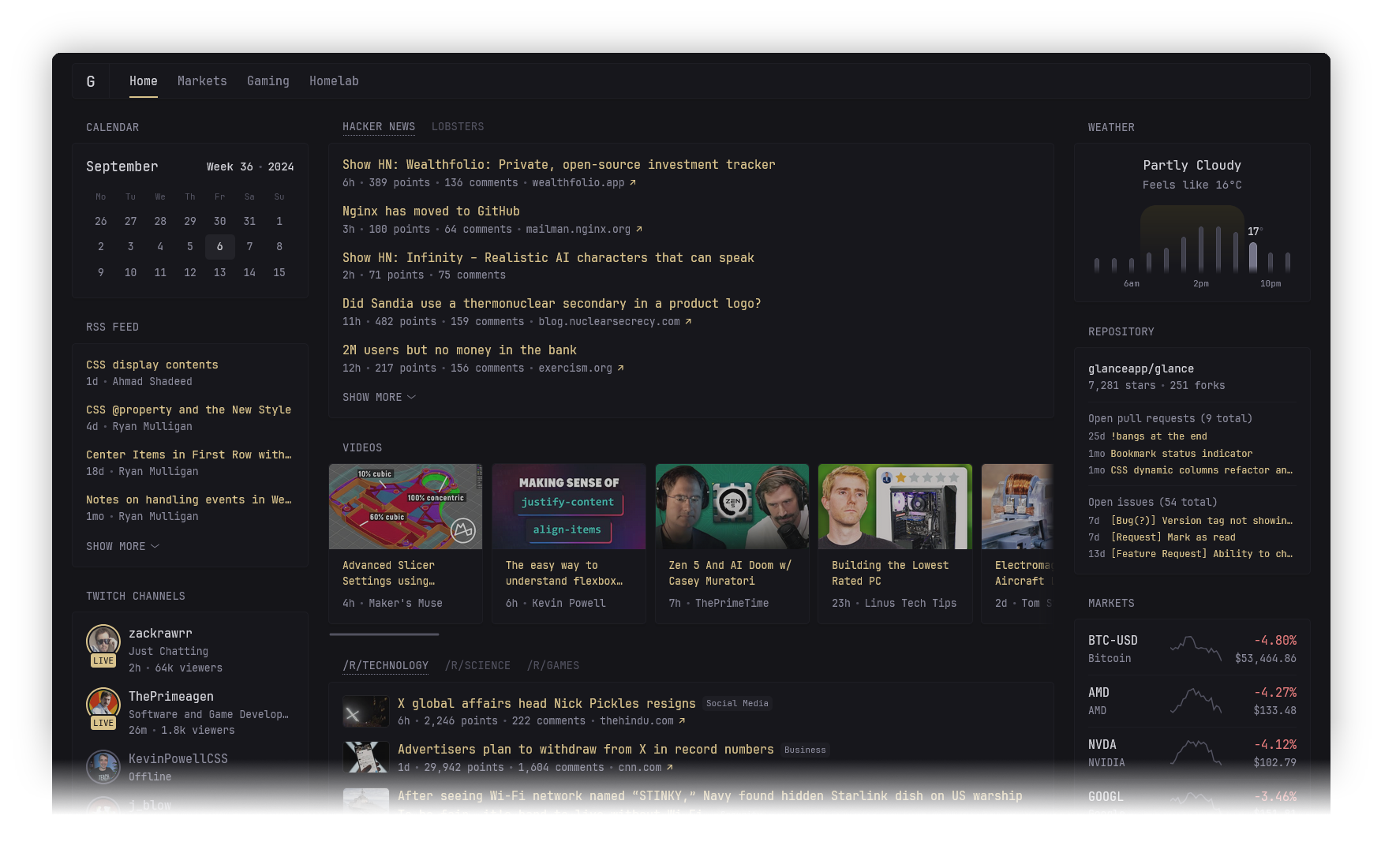
Features
Various widgets
- RSS feeds
- Subreddit posts
- Hacker News posts
- Weather forecasts
- YouTube channel uploads
- Twitch channels
- Market prices
- Docker containers status
- Server stats
- Custom widgets
- and many more...
Fast and lightweight
- Low memory usage
- Few dependencies
- Minimal vanilla JS
- Single <20mb binary available for multiple OSs & architectures and just as small Docker container
- Uncached pages usually load within ~1s (depending on internet speed and number of widgets)
Tons of customizability
- Different layouts
- As many pages/tabs as you need
- Numerous configuration options for each widget
- Multiple styles for some widgets
- Custom CSS
Optimized for mobile devices
Because you'll want to take it with you on the go.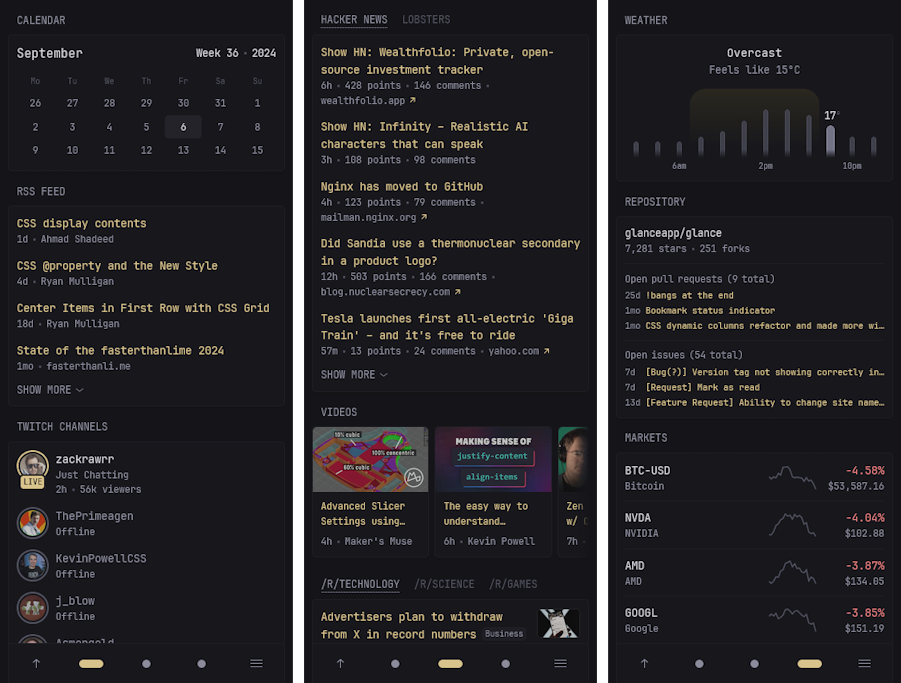
Themeable
Easily create your own theme by tweaking a few numbers or choose from one of the already available themes.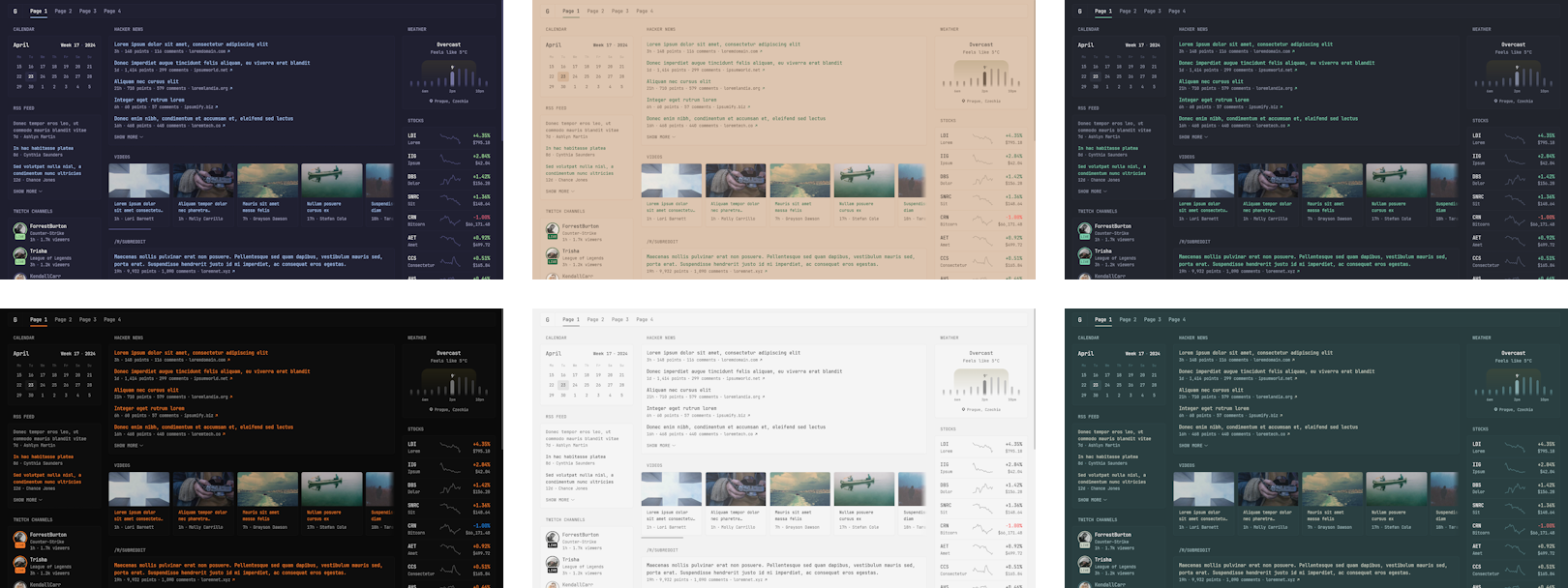
Configuration
Configuration is done through YAML files, to learn more about how the layout works, how to add more pages and how to configure widgets, visit the configuration documentation.Preview example configuration file
pages:
  - name: Home
    columns:
      - size: small
        widgets:
          - type: calendar
            first-day-of-week: monday

          - type: rss
            limit: 10
            collapse-after: 3
            cache: 12h
            feeds:
              - url: https://selfh.st/rss/
                title: selfh.st
                limit: 4
              - url: https://ciechanow.ski/atom.xml
              - url: https://www.joshwcomeau.com/rss.xml
                title: Josh Comeau
              - url: https://samwho.dev/rss.xml
              - url: https://ishadeed.com/feed.xml
                title: Ahmad Shadeed

          - type: twitch-channels
            channels:
              - theprimeagen
              - j_blow
              - piratesoftware
              - cohhcarnage
              - christitustech
              - EJ_SA

      - size: full
        widgets:
          - type: group
            widgets:
              - type: hacker-news
              - type: lobsters

          - type: videos
            channels:
              - UCXuqSBlHAE6Xw-yeJA0Tunw # Linus Tech Tips
              - UCR-DXc1voovS8nhAvccRZhg # Jeff Geerling
              - UCsBjURrPoezykLs9EqgamOA # Fireship
              - UCBJycsmduvYEL83R_U4JriQ # Marques Brownlee
              - UCHnyfMqiRRG1u-2MsSQLbXA # Veritasium

          - type: group
            widgets:
              - type: reddit
                subreddit: technology
                show-thumbnails: true
              - type: reddit
                subreddit: selfhosted
                show-thumbnails: true

      - size: small
        widgets:
          - type: weather
            location: London, United Kingdom
            units: metric
            hour-format: 12h

          - type: markets
            markets:
              - symbol: SPY
                name: S&P 500
              - symbol: BTC-USD
                name: Bitcoin
              - symbol: NVDA
                name: NVIDIA
              - symbol: AAPL
                name: Apple
              - symbol: MSFT
                name: Microsoft

          - type: releases
            cache: 1d
            repositories:
              - glanceapp/glance
              - go-gitea/gitea
              - immich-app/immich
              - syncthing/syncthing
Installation
Choose one of the following methods:Docker compose using provided directory structure (recommended)
Create a new directory called
glance as well as the template files within it by running:mkdir glance && cd glance && curl -sL https://github.com/glanceapp/docker-compose-template/archive/refs/heads/main.tar.gz | tar -xzf - --strip-components 2click here to view the files that will be created
Then, edit the following files as desired:
docker-compose.ymlto configure the port, volumes and other containery thingsconfig/home.ymlto configure the widgets or layout of the home pageconfig/glance.ymlif you want to change the theme or add more pages
Other files you may want to edit
.envto configure environment variables that will be available inside configuration filesassets/user.cssto add custom CSS
When ready, run:
docker compose up -dIf you encounter any issues, you can check the logs by running:
docker compose logsDocker compose manual
Create a
docker-compose.yml file with the following contents:services:
glance:
container_name: glance
image: glanceapp/glance
restart: unless-stopped
volumes:
- ./config:/app/config
ports:
- 8080:8080Then, create a new directory called
config and download the example starting glance.yml file into it by running:mkdir config && wget -O config/glance.yml https://raw.githubusercontent.com/glanceapp/glance/refs/heads/main/docs/glance.ymlFeel free to edit the
glance.yml file to your liking, and when ready run:docker compose up -dIf you encounter any issues, you can check the logs by running:
docker logs glanceManual binary installation
Precompiled binaries are available for Linux, Windows and macOS (x86, x8664, ARM and ARM64 architectures).
Linux
Visit the latest release page for available binaries. You can place the binary in/opt/glance/ and have it start with your server via a systemd service. By default, when running the binary, it will look for a glance.yml file in the directory it's placed in. To specify a different path for the config file, use the --config option:/opt/glance/glance --config /etc/glance.ymlTo grab a starting template for the config file, run:
wget https://raw.githubusercontent.com/glanceapp/glance/refs/heads/main/docs/glance.ymlWindows
Download and extract the executable from the latest release (most likely the file calledglance-windows-amd64.zip if you're on a 64-bit system) and place it in a folder of your choice. Then, create a new text file called glance.yml in the same folder and paste the content from here in it. You should then be able to run the executable and access the dashboard by visiting http://localhost:8080 in your browser.Other
Glance can also be installed through the following 3rd party channels:
Common issues
Requests timing out
The most common cause of this is when using Pi-Hole, AdGuard Home or other ad-blocking DNS services, which by default have a fairly low rate limit. Depending on the number of widgets you have in a single page, this limit can very easily be exceeded. To fix this, increase the rate limit in the settings of your DNS service.
If using Podman, in some rare cases the timeout can be caused by an unknown issue, in which case it may be resolved by adding the following to the bottom of your
docker-compose.yml file:
networks:
  podman:
    external: true
Broken layout for markets, bookmarks or other widgets
This is almost always caused by the browser extension Dark Reader. To fix this, disable dark mode for the domain where Glance is hosted.
cannot unmarshal !!map into glance.page
The most common cause of this is having a
pages key in your glance.yml and then also having a pages key inside one of your included pages. To fix this, remove the pages key from the top of your included pages.FAQ
Does the information on the page update automatically?
No, a page refresh is required to update the information. Some things do dynamically update where it makes sense, like the clock widget and the relative time showing how long ago something happened.How frequently do widgets update?
No requests are made periodically in the background, information is only fetched upon loading the page and then cached. The default cache lifetime is different for each widget and can be configured.Can I create my own widgets?
Yes, there are multiple ways to create custom widgets:
iframewidget - allows you to embed things from other websiteshtmlwidget - allows you to insert your own static HTMLextensionwidget - fetch HTML from a URLcustom-apiwidget - fetch JSON from a URL and render it using custom HTML
Can I change the title of a widget?
Yes, the title of all widgets can be changed by specifying the
title property in the widget's configuration:- type: rss
title: My custom title
- type: markets
title: My custom title
- type: videos
title: My custom title
# and so on for all widgets...Feature requests
New feature suggestions are always welcome and will be considered, though please keep in mind that some of them may be out of scope for what the project is trying to achieve (or is reasonably capable of). If you have an idea for a new feature and would like to share it, you can do so here.Feature requests are tagged with one of the following:
- Roadmap - will be implemented in a future release
- Backlog - may be implemented in the future but needs further feedback or interest from the community
- Icebox - no plans to implement as it doesn't currently align with the project's goals or capabilities, may be revised at a later date
Building from source
Choose one of the following methods:Build binary with Go
Requirements: Go >= v1.23
To build the project for your current OS and architecture, run:
go build -o build/glance .To build for a specific OS and architecture, run:
GOOS=linux GOARCH=amd64 go build -o build/glance .click here for a full list of GOOS and GOARCH combinations
Alternatively, if you just want to run the app without creating a binary, like when you're testing out changes, you can run:
go run .Build project and Docker image with Docker
Requirements: Docker
To build the project and image using just Docker, run:
(replace
owner with your name or organization)docker build -t owner/glance:latest .If you wish to push the image to a registry (by default Docker Hub), run:
docker push owner/glance:latestContributing guidelines
- Before working on a new feature it's preferable to submit a feature request first and state that you'd like to implement it yourself
- Please don't submit PRs for feature requests that are either in the roadmap1, backlog2 or icebox3
- Use
devfor the base branch if you're adding new features or fixing bugs, otherwise usemain - Avoid introducing new dependencies
- Avoid making backwards-incompatible configuration changes
- Avoid introducing new colors or hard-coding colors, use the standard
primary,positiveandnegative - For icons, try to use heroicons where applicable
- Provide a screenshot of the changes if UI related where possible
- No
package.json
1 2 3
1 The feature likely already has work put into it that may conflict with your implementation
2 The demand, implementation or functionality for this feature is not yet clear
3 No plans to add this feature for the time being
Thank you
To all the people who were generous enough to sponsor the project and to everyone who has contributed in any way, be it PRs, submitting issues, helping others in the discussions or Discord server, creating guides and tools or just mentioning Glance on social media. Your support is greatly appreciated and helps keep the project going.Serve Glance on your own domain behind Caddy, Nginx or Traefik. Fill in your domain and copy the result. It's a starting point, some apps need their own base URL or extra headers set too.
Proxying glance.example.com to http://glance:8080
Add this to your Caddyfile
glance.example.com {
	reverse_proxy http://glance:8080
}Check the logs first
Nine times out of ten the logs tell you exactly what went wrong.
- In Portainer, go to Containers, click the container, then Logs. Or run
docker logs glance - Exit codes help too:
137means killed, usually out of memory.126or127means the command inside the image is broken.
Port already in use
If deployment fails with "Bind for 0.0.0.0:8080 failed: port is already allocated", something else on your server is using that port.
- Find what's using it:
sudo ss -tlnp | grep :8080 - Stop the other service, or pick a different host port. In
8080:8080only the left number is yours to change, the right one belongs to the app.
Running but the page won't load
The container is up but nothing appears in your browser.
- Use your server's real IP:
http://your-server-ip:8080. The 0.0.0.0 link Portainer shows isn't a real address. - Give it a minute after first deploy, glance can take a while to initialise.
- Make sure your firewall allows the port, e.g.
sudo ufw allow 8080
Image won't pull
Test the pull directly on the host: docker pull glanceapp/glance:latest
- "manifest unknown" means the tag no longer exists. This template uses
latest, so try pinning a specific version instead. - "toomanyrequests" is the Docker Hub rate limit. Log in with
docker loginto raise it. - "no space left on device" means a full disk. Reclaim space with
docker system prune
"exec format error"
This means the image was built for a different CPU architecture than your server.
- This image supports:
amd64, arm64, arm/v7, arm64/v7 - Check yours with
uname -m: x86_64 is amd64, aarch64 is arm64. Raspberry Pi and other ARM boards are the usual culprits.
Container keeps restarting
The unless-stopped restart policy relaunches the app after every crash, so the real error can scroll past.
- Check the logs right after a restart, the last few lines before it died are the useful ones.
- Get the exit code with
docker inspect glance --format '{{.State.ExitCode}}' - Still stuck? Redeploy once with the restart policy set to
noso the failure stays visible.
Raise an issue
Found something which isn't working as it should? Here's how to report it.
- Bug within the app: Open an issue on glanceapp/glance
- Template not working: Open an issue within the template's repo
- This website not working: Open an issue on lissy93/portainer-templates
A single container
Glance runs as one container, the simplest kind of app here. Just the one image to pull and nothing else wired up alongside it.
The app image
An image is the app packed up ready to go, everything Glance needs bundled into one download. This template pulls glanceapp/glance:latest, which Docker fetches once (about 10 MB) and then starts your own copy from.
Where the image comes from
Docker pulls its images from registries, public libraries of ready-built apps. Glance's comes from Docker Hub, published by glanceapp.
Version tags
The bit after the colon in the image name is the version tag. Here it's latest, which always points at the newest build, so a redeploy can bump you to a newer release without you asking. Newest right now is v0.8.6. Pin a specific tag if you would rather stay on one version.
Which machines it runs on
Every image is built for particular CPU types. This one ships for amd64, arm64, arm/v7, arm64/v7, so it runs on both regular x86 servers and ARM boards like a Raspberry Pi.
Ports
A port is the door the app answers on. A mapping like 8080:8080 means it's reachable on port 8080 of your server, where the left number is yours to change and the right one belongs to the app. Once it's running, open http://your-server-ip:8080 in a browser. It opens:
8080:8080, likely the web interface
Volumes
A volume is where Glance keeps its files so they survive an update or a restart. Without one, anything it saves would sit inside the container and vanish the moment it's recreated. This template mounts:
/app/configas a volume Docker manages for you
Restart policy
The restart policy here is unless-stopped, so Docker restarts Glance after a crash or reboot, but leaves it off when you stop it on purpose. You can change this on the deploy screen. The choices are no (never restart), on-failure (only after a crash), unless-stopped (restart unless you stop it), and always (bring it back no matter what).
Networking
Nothing custom is set, so Glance sits on Docker's default bridge network: its own private space that reaches the outside world only through the ports it publishes.
Container name
Once it's deployed, Portainer names the container glance. That's what you'll spot in the containers list and use in commands like docker logs glance.
Platform
The platform is linux, the kind of system the container is built to run on. Docker and Portainer handle this on a normal Linux server.
Open source license
Glance is open source, released under the AGPL-3.0 license. In plain terms the code is out in the open, so you're free to run it and change it to fit what you need.
Portainer app templates
Zooming out, this whole page comes from a Portainer app template: a short recipe telling Portainer how to set Glance up. Add the template list to Portainer once, then deploying Glance is a click rather than a wall of config.