
![Open WebUI]() Open WebUI
Open WebUI
Stack
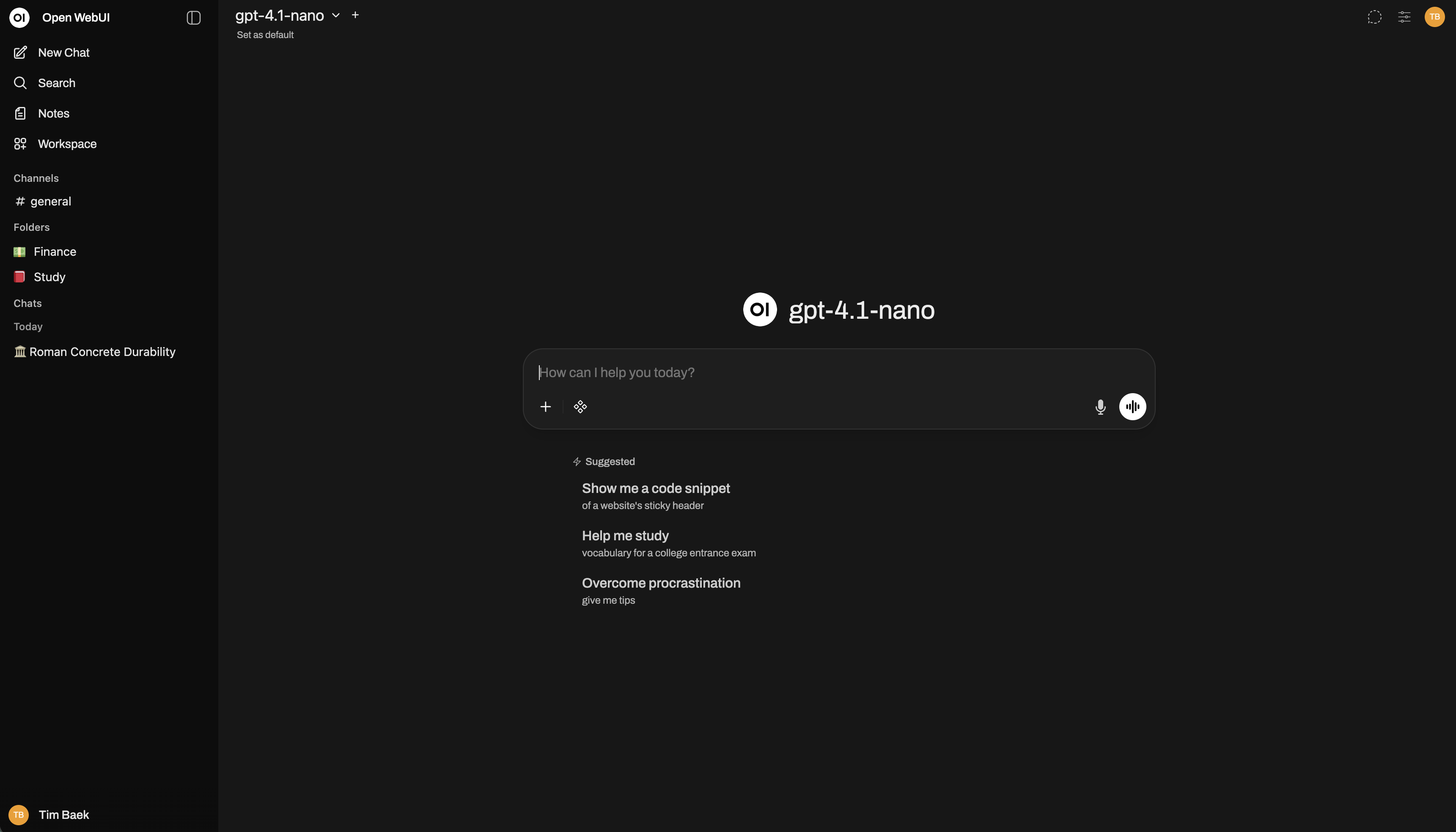
Open WebUI - the self-hosted AI chat workspace: ChatGPT-style UI over any OpenAI-compatible API, with RAG over uploaded documents, multi-user accounts, RBAC, and prompt/model presets. Single container + volume.
Image details
Source details
Configuration
TypeComposelinuxghcr.io/open-webui/open-webui:v0.10.25000:5000/app/backend/data : webuidataPORT=5000WEBUI_SECRET_KEY=${WEBUI_SECRET_KEY}OPENAI_API_BASE_URL=${OPENAI_API_BASE_URL:-https://api.openai.com/v1}OPENAI_API_KEY=${OPENAI_API_KEY}ENABLE_OLLAMA_API=falseunless-stoppedTemplate by deployable-sh·Source
Report issueStandalone Install
Select an install method, to see config/commands for deploying Open WebUI
Install on Portainer
Import all app templates into your Portainer instance, for easy 1-click deploys
- Ensure both Docker and Portainer are installed, and up-to-date
- Log into your Portainer web UI
- Under Settings → App Templates, paste the below URL
- Head to Home → App Templates, and the list of apps will show up
- Select Open WebUI, fill in any config options, and hit Deploy
Template Import URL
https://raw.githubusercontent.com/Lissy93/portainer-templates/main/templates.json
Show Me

Original stackfile
The compose file this template deploys, straight from its repo:
name: open-webui

services:
  open-webui:
    healthcheck:
      test: ["CMD-SHELL", "curl -sf http://127.0.0.1:5000/health >/dev/null"]
      interval: 30s
      timeout: 5s
      retries: 5
      start_period: 60s
    image: ghcr.io/open-webui/open-webui:v0.10.2
    restart: unless-stopped
    environment:
      PORT: "5000"
      WEBUI_SECRET_KEY: ${WEBUI_SECRET_KEY}
      OPENAI_API_BASE_URL: ${OPENAI_API_BASE_URL:-https://api.openai.com/v1}
      OPENAI_API_KEY: ${OPENAI_API_KEY}
      ENABLE_OLLAMA_API: "false"
    ports:
      - "5000:5000"
    volumes:
      - webuidata:/app/backend/data

volumes:
  webuidata:
Or deploy it directly from the source:
git clone https://github.com/deployable-sh/stacks
cd stacks
docker compose -f open-webui/compose.yaml up -d
More install options in our documentation, or see open-webui/open-webui for app-specific guidance.
Open WebUI 👋









Open WebUI is a home for AI, a self-hosted AI platform that's extensible, feature-rich, user-friendly, and built to run entirely offline. With support for Ollama and OpenAI-compatible APIs, it gives you a powerful, provider-agnostic interface for both local and cloud-based models.
Passionate about open-source AI? Join our team →
!TIP
Looking for an Enterprise Plan? – Speak with Our Sales Team Today!
For more information, be sure to check out our Open WebUI Documentation.
Key Features of Open WebUI ⭐
- 🚀 Effortless Setup: Install seamlessly via pip, uv, Docker, or Kubernetes (kubectl, kustomize, or helm), with
:ollamaand:cudatagged images available for container deployments.
- 🤝 Broad Model & API Integration: Connect any OpenAI-compatible API alongside local Ollama models. Point the API URL at LMStudio, GroqCloud, Mistral, OpenRouter, vLLM, and more to mix and match providers freely.
- 🔐 Granular RBAC & User Groups: Administrators define detailed roles, groups, and permissions, giving each user exactly the access they need. Secure by default, with tailored experiences per group.
- 🧩 Plugin Support: Extend Open WebUI with Filters, Actions, Pipes, Tools, and Skills. Connect external services through MCP, MCPO, and OpenAPI tool servers. Build custom integrations, rate limits, approval flows, data connections, and more.
- 🤖 Models & Agents: Wrap any base model with custom instructions, tools, and knowledge to build specialized agents. Supports dynamic variables, per-user/group access control, and community preset imports via Open WebUI Community.
- ⚡ Agentic Execution with Open Terminal: Give your agents a terminal and filesystem to carry out multi-step tasks. Let them analyze data, run scripts, fix errors, and produce files directly in chat. Scale to teams with Terminals (Enterprise) for per-user isolated environments, resource limits, and automatic lifecycle management.
- 📝 Notes: A dedicated workspace for content outside conversations. Draft with a rich editor, use AI to rewrite selected text, and attach notes to any chat for full-context injection.
- 📢 Channels: Real-time shared spaces where your team and AI models collaborate in one timeline. Tag models to draft or critique, with threads, reactions, pins, and access control.
- 🧠 Persistent Memory: The AI remembers facts about you across conversations, carrying context from one chat to the next.
- ✅ Live Workflow & Message Flow: Watch the AI build and work through checklists in real time. Queue messages while the AI is still responding; they send automatically when it's ready.
- 📅 Calendar & AI Scheduling: Built-in personal and shared calendars with month/week/day views, recurring events, color coding, attendees, and reminders. Models manage your schedule conversationally through native function calling.
- ⏱️ Automations: Schedule prompts to run on recurring schedules, with runs surfaced on your calendar and each completed run linking back to the chat it produced.
- 📱 Responsive Design & PWA: Seamless experience across desktop, laptop, and mobile, with a Progressive Web App for native app-like feel and offline access on localhost.
- ✒️🔢 Full Markdown and LaTeX Support: Comprehensive Markdown and LaTeX capabilities for enriched interaction.
- 🎤📹 Hands-Free Voice/Video Call: Integrated voice and video calls with multiple Speech-to-Text providers (Local Whisper, OpenAI, Deepgram, Azure) and Text-to-Speech engines (Azure, ElevenLabs, OpenAI, Transformers, WebAPI).
- 💾 Persistent Artifact Storage: Built-in key-value storage API for artifacts, enabling journals, trackers, leaderboards, and collaborative tools with personal and shared data scopes.
- 📚 Local RAG Integration: Retrieval Augmented Generation backed by 9 vector databases and multiple content-extraction engines (Tika, Docling, Document Intelligence, Mistral OCR, PaddleOCR-vl, external loaders). Supports hybrid search (BM25 + vector) with reranking and full-context mode. Load documents into chat or pull them from your library with the
#command.
- 🔍 Web Search for RAG: Search the web through dozens of providers including
SearXNG,Google PSE,Brave Search,Kagi,Mojeek,Tavily,Perplexity,Firecrawl,serpstack,serper,Serply,DuckDuckGo,SearchApi,SerpApi,Bing,Jina,Exa,Sougou,Azure AI Search, andOllama Cloud, injecting results directly into the conversation.
- 🌐 Web Browsing Capability: Pull websites into chat with the
#command followed by a URL, or let the model fetch them on its own when needed.
- 🎨 Image Generation & Editing: Create and edit images with multiple engines including OpenAI DALL·E, Gemini, ComfyUI (local), and AUTOMATIC1111 (local), supporting both generation and prompt-based editing.
- ⚙️ Multi-Model Conversations: Engage several models at once, harnessing their individual strengths in parallel for the best possible responses.
- 📊 Usage Analytics & Model Evaluation: Admin dashboards track message volume, token consumption, and cost across users and models. Evaluate models with a built-in arena, A/B testing, and ELO-based leaderboards.
- 🗄️ Flexible Database & Storage: Choose SQLite (with optional encryption) or PostgreSQL, and store files locally or on S3, Google Cloud Storage, or Azure Blob Storage.
- 🧬 Advanced Vector Database Support: Pick from 9 vector databases: ChromaDB, PGVector, Qdrant, Milvus, Elasticsearch, OpenSearch, Pinecone, S3Vector, and Oracle 23ai.
- 🪪 Enterprise Authentication & Provisioning: Full LDAP/Active Directory integration, SSO via trusted headers and OAuth providers, and SCIM 2.0 automated provisioning for identity providers like Okta, Azure AD, and Google Workspace.
- ☁️ Cloud-Native File Integration: Native Google Drive and OneDrive/SharePoint file picking for seamless document import from enterprise cloud storage.
- 🔭 Production Observability: Built-in OpenTelemetry support for traces, metrics, and logs, plugging into your existing monitoring stack.
- ⚖️ Horizontal Scalability: Redis-backed session management and WebSocket support for multi-worker, multi-node deployments behind load balancers.
- 🌐🌍 Multilingual Support: Use Open WebUI in your preferred language with i18n support. We're actively seeking contributors to expand language coverage!
- 🌟 Continuous Updates: We're committed to improving Open WebUI with regular updates, fixes, and new features.
- 🛡️ Transparent Security Process: Security reports are triaged, fixed, and published as open advisories through a documented responsible-disclosure process. See our Security Policy.
Want to learn more about Open WebUI's features? Check out our Open WebUI documentation for a comprehensive overview!
The Open WebUI Ecosystem 🌐
Open WebUI is the core, surrounded by companion apps and infrastructure that extend what your AI can do, where it can reach, and how you run it:- 💻 Open WebUI Computer (open-webui/computer): A standalone, mobile-first computer and coding agent that runs on the machine you own. Files, terminal, and git in a browser tab, reachable from your phone. Connect it into Open WebUI as a model, or reach it from Telegram, WhatsApp, and more.
- ⚡ Open Terminal and Terminals (Enterprise) (open-webui/open-terminal & open-webui/terminals): A self-hosted computing environment that plugs into Open WebUI, giving the AI a place to write code, run it, read output, fix errors, and iterate inside the chat. Terminals gives you per-user isolated containers with separate credentials, resource limits, and network rules. Automatic lifecycle management on Docker or Kubernetes.
- 🔄 oikb (open-webui/oikb): Feed your Knowledge Bases from 45+ sources (GitHub, Confluence, ServiceNow, Salesforce, Jira, Slack, SharePoint, Notion, and more), keeping the tools your team already uses continuously in sync.
- 🖥️ Native Desktop App (open-webui/desktop): Run Open WebUI as a native app on macOS, Windows, and Linux. System-wide Spotlight chat bar with screenshot capture, push-to-talk voice, and optional fully-local inference via a built-in llama.cpp engine.
Want to learn more? Check out our Open WebUI documentation for more details!
We are incredibly grateful for the generous support of our sponsors. Their contributions help us to maintain and improve our project, ensuring we can continue to deliver quality work to our community. Thank you!
How to Install 🚀
Installation via Python pip 🐍
Open WebUI can be installed using pip, the Python package installer. Before proceeding, ensure you're using Python 3.11 to avoid compatibility issues.- Install Open WebUI:
Open your terminal and run the following command to install Open WebUI:

```bash
pip install open-webui
```- Running Open WebUI:
After installation, you can start Open WebUI by executing:

```bash
open-webui serve
```Quick Start with Docker 🐳
!NOTE
Please note that for certain Docker environments, additional configurations might be needed. If you encounter any connection issues, our detailed guide on Open WebUI Documentation is ready to assist you.
!WARNING
When using Docker to install Open WebUI, make sure to include the -v open-webui:/app/backend/data in your Docker command. This step is crucial as it ensures your database is properly mounted and prevents any loss of data.!TIP
If you wish to utilize Open WebUI with Ollama included or CUDA acceleration, we recommend utilizing our official images tagged with either:cudaor:ollama. To enable CUDA, you must install the Nvidia CUDA container toolkit on your Linux/WSL system.
Installation with Default Configuration
- If Ollama is on your computer, use this command:
```bash docker run -d -p 3000:8080 --add-host=host.docker.internal:host-gateway -v open-webui:/app/backend/data --name open-webui --restart always ghcr.io/open-webui/open-webui:main ```
- If Ollama is on a Different Server, use this command:
To connect to Ollama on another server, change the
OLLAMA_BASE_URL to the server's URL:```bash docker run -d -p 3000:8080 -e OLLAMABASEURL=https://example.com -v open-webui:/app/backend/data --name open-webui --restart always ghcr.io/open-webui/open-webui:main ```
- To run Open WebUI with Nvidia GPU support, use this command:
```bash docker run -d -p 3000:8080 --gpus all --add-host=host.docker.internal:host-gateway -v open-webui:/app/backend/data --name open-webui --restart always ghcr.io/open-webui/open-webui:cuda ```
Installation for OpenAI API Usage Only
- If you're only using OpenAI API, use this command:
```bash docker run -d -p 3000:8080 -e OPENAIAPIKEY=yoursecretkey -v open-webui:/app/backend/data --name open-webui --restart always ghcr.io/open-webui/open-webui:main ```
Installing Open WebUI with Bundled Ollama Support
This installation method uses a single container image that bundles Open WebUI with Ollama, allowing for a streamlined setup via a single command. Choose the appropriate command based on your hardware setup:- With GPU Support:
```bash docker run -d -p 3000:8080 --gpus=all -v ollama:/root/.ollama -v open-webui:/app/backend/data --name open-webui --restart always ghcr.io/open-webui/open-webui:ollama ```
- For CPU Only:
```bash docker run -d -p 3000:8080 -v ollama:/root/.ollama -v open-webui:/app/backend/data --name open-webui --restart always ghcr.io/open-webui/open-webui:ollama ```
Both commands facilitate a built-in, hassle-free installation of both Open WebUI and Ollama, ensuring that you can get everything up and running swiftly.
After installation, you can access Open WebUI at http://localhost:3000. Enjoy! 😄
Other Installation Methods
We offer various installation alternatives, including non-Docker native installation methods, Docker Compose, Kustomize, and Helm. Visit our Open WebUI Documentation or join our Discord community for comprehensive guidance.Troubleshooting
Encountering connection issues? Our Open WebUI Documentation has got you covered. For further assistance and to join our vibrant community, visit the Open WebUI Discord.Open WebUI: Server Connection Error
If you're experiencing connection issues, it’s often due to the WebUI docker container not being able to reach the Ollama server at 127.0.0.1:11434 (host.docker.internal:11434) inside the container . Use the--network=host flag in your docker command to resolve this. Note that the port changes from 3000 to 8080, resulting in the link: http://localhost:8080.Example Docker Command:
docker run -d --network=host -v open-webui:/app/backend/data -e OLLAMA_BASE_URL=http://127.0.0.1:11434 --name open-webui --restart always ghcr.io/open-webui/open-webui:mainKeeping Your Docker Installation Up-to-Date
Check our Updating Guide available in our Open WebUI Documentation.Using the Dev Branch 🌙
!WARNING
The :dev branch contains the latest unstable features and changes. Use it at your own risk as it may have bugs or incomplete features.If you want to try out the latest bleeding-edge features and are okay with occasional instability, you can use the
:dev tag like this:docker run -d -p 3000:8080 -v open-webui:/app/backend/data --name open-webui --add-host=host.docker.internal:host-gateway --restart always ghcr.io/open-webui/open-webui:devOffline Mode
If you are running Open WebUI in an offline environment, you can set theHF_HUB_OFFLINE environment variable to 1 to prevent attempts to download models from the internet.export HF_HUB_OFFLINE=1What's Next? 🌟
Discover upcoming features on our roadmap in the Open WebUI Documentation.License 📜
This project contains code under multiple licenses. The current codebase includes components licensed under the Open WebUI License with an additional requirement to preserve the "Open WebUI" branding, as well as prior contributions under their respective original licenses. For a detailed record of license changes and the applicable terms for each section of the code, please refer to LICENSEHISTORY. For complete and updated licensing details, please see the LICENSE and LICENSEHISTORY files.Support 💬
If you have any questions, suggestions, or need assistance, please open an issue or join our Open WebUI Discord community to connect with us! 🤝Security 🛡️
If you believe you've found a security vulnerability, or something that shouldn't be disclosed publicly, please reach out confidentially through our responsible disclosure program on GitHub. We accept reports only through GitHub, not through any other platform. Thank you for helping us keep Open WebUI secure!Star History
<source media="(prefers-color-scheme: dark)" srcset="https://api.star-history.com/svg?repos=open-webui/open-webui&type=Date&theme=dark" />
<source media="(prefers-color-scheme: light)" srcset="https://api.star-history.com/svg?repos=open-webui/open-webui&type=Date" />
<img alt="Star History Chart" src="https://api.star-history.com/svg?repos=open-webui/open-webui&type=Date" />
Created by Timothy Jaeryang Baek - Let's make Open WebUI even more amazing together! 💪
Serve Open WebUI on your own domain behind Caddy, Nginx or Traefik. Fill in your domain and copy the result. It's a starting point, some apps need their own base URL or extra headers set too.
Proxying open-webui.example.com to http://open-webui:5000
Add this to your Caddyfile
open-webui.example.com {
	reverse_proxy http://open-webui:5000
}Check the logs first
Nine times out of ten the logs tell you exactly what went wrong.
- In Portainer, go to Containers, click the container, then Logs. Or run
docker logs <container> - Exit codes help too:
137means killed, usually out of memory.126or127means the command inside the image is broken.
Port already in use
If deployment fails with "Bind for 0.0.0.0:5000 failed: port is already allocated", something else on your server is using that port.
- Find what's using it:
sudo ss -tlnp | grep :5000 - Stop the other service, or pick a different host port. In
5000:5000only the left number is yours to change, the right one belongs to the app.
Running but the page won't load
The container is up but nothing appears in your browser.
- Use your server's real IP:
http://your-server-ip:5000. The 0.0.0.0 link Portainer shows isn't a real address. - Give it a minute after first deploy, open-webui can take a while to initialise.
- Make sure your firewall allows the port, e.g.
sudo ufw allow 5000
Image won't pull
Test the pull directly on the host: docker pull ghcr.io/open-webui/open-webui:v0.10.2
- "manifest unknown" means the tag no longer exists.
- "toomanyrequests" is the Docker Hub rate limit. Log in with
docker loginto raise it. - "no space left on device" means a full disk. Reclaim space with
docker system prune
"exec format error"
This means the image was built for a different CPU architecture than your server.
- This image supports:
amd64, arm64 - Check yours with
uname -m: x86_64 is amd64, aarch64 is arm64. Raspberry Pi and other ARM boards are the usual culprits.
Container keeps restarting
The unless-stopped restart policy relaunches the app after every crash, so the real error can scroll past.
- Check the logs right after a restart, the last few lines before it died are the useful ones.
- Get the exit code with
docker inspect <container> --format '{{.State.ExitCode}}' - Still stuck? Redeploy once with the restart policy set to
noso the failure stays visible.
Stack won't deploy
Compose stacks fail fast on small mistakes, and Portainer shows the reason just above the editor.
- YAML only accepts spaces for indentation, a single tab breaks the whole file.
Raise an issue
Found something which isn't working as it should? Here's how to report it.
- Bug within the app: Open an issue on open-webui/open-webui
- Template not working: Open an issue on deployable-sh/stacks
- This website not working: Open an issue on lissy93/portainer-templates
A Compose stack
Open WebUI is a Compose stack, a set of containers defined in one file and brought up together by Portainer, then started and stopped as a single app.
The app image
An image is the app packed up ready to go, everything Open WebUI needs bundled into one download. This template pulls ghcr.io/open-webui/open-webui:v0.10.2, which Docker fetches once (about 1.7 GB) and then starts your own copy from.
Where the image comes from
Docker pulls its images from registries, public libraries of ready-built apps. Open WebUI's comes from the GitHub Container Registry, published by open-webui.
Version tags
The bit after the colon in the image name is the version tag. This one pins v0.10.2, so every redeploy gives you that exact build until you bump it yourself.
Which machines it runs on
Every image is built for particular CPU types. This one ships for amd64, arm64, so it runs on both regular x86 servers and ARM boards like a Raspberry Pi.
Ports
A port is the door the app answers on. A mapping like 5000:5000 means it's reachable on port 5000 of your server, where the left number is yours to change and the right one belongs to the app. It opens:
5000:5000
Volumes
A volume is where Open WebUI keeps its files so they survive an update or a restart. Without one, anything it saves would sit inside the container and vanish the moment it's recreated. This template mounts:
/app/backend/datakept in thewebuidatavolume Docker manages
Environment variables
Environment variables are the settings you hand over when you deploy, things like a password or a timezone. Open WebUI takes 5 of them, all with defaults you can leave alone or tweak:
PORT, defaults to5000WEBUI_SECRET_KEY, pulled from your own environment. Session/JWT signing - persistent, or logins reset on redeploy.OPENAI_API_BASE_URL, defaults tohttps://api.openai.com/v1. Any OpenAI-compatible endpoint.OPENAI_API_KEY, pulled from your own environmentENABLE_OLLAMA_API, defaults tofalse
Restart policy
The restart policy here is unless-stopped, so Docker restarts Open WebUI after a crash or reboot, but leaves it off when you stop it on purpose. You can change this on the deploy screen. The choices are no (never restart), on-failure (only after a crash), unless-stopped (restart unless you stop it), and always (bring it back no matter what).
Health check
A health check is how Docker tells whether Open WebUI is really working, not just switched on. It runs curl -sf http://127.0.0.1:5000/health >/dev/null every 30s and flags the container as unhealthy if that keeps failing.
Networking
Nothing custom is set, so Open WebUI sits on Docker's default bridge network: its own private space that reaches the outside world only through the ports it publishes.
Container name
Once it's deployed, Portainer names the container open-webui. That's what you'll spot in the containers list and use in commands like docker logs open-webui.
Platform
The platform is linux, the kind of system the container is built to run on. Docker and Portainer handle this on a normal Linux server.
Portainer app templates
Zooming out, this whole page comes from a Portainer app template: a short recipe telling Portainer how to set Open WebUI up. Add the template list to Portainer once, then deploying Open WebUI is a click rather than a wall of config.